Google Slides - How to embed (with examples)
How to embed Google Slides!
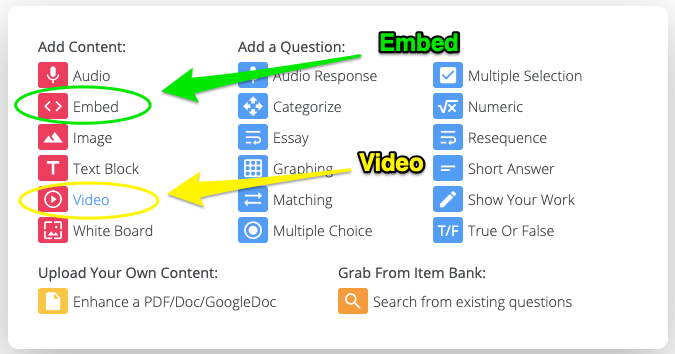
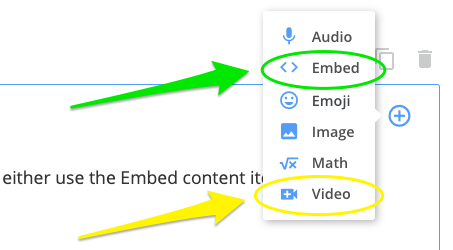
With Google Slides (and other Google Drive files), you have two options for embedding! You can use the Embed content item OR the Video content item:
Premium/Partner users can also embed or add video within any question type!
Tip: Not sure how to embed a site you use? Or want to share the awesome ways you embed sites in your formatives? Post about in our Community Center (https://discuss.goformative.com/)!
Instructions for embedding:
Sign in to Google, open Google Drive, and then open the Google Slide you'd like to embed
Click "File" at the top left, and select "Publish to the web"
Choose the "Embed" tab and adjust settings to your preference
Click "Publish" and copy the embed code that appears
Paste the code into the Embed field in your formative 🙂
Tip: You can edit the height="500px" width="700px" part of the code to adjust how the Slides display on your students' devices.
Note: Embedded Google Slides are not editable by students.
Example:
Instructions for adding as a Video item:
Sign in to Google, open Google Drive, and then open the Google Slide you'd like to embed
Click the "Share" button at the top right
Choose your link sharing options (make sure your students have access) and click "Copy link"
Paste the link into the Video field in your formative 🙂
Note: Google Slides are not editable by students.