Log in
Sign up for FREE
arrow_back
Library

Chem Scavenger Hunt (CP)

star
star
star
star
star
Last updated 29 days ago
7 questions
1
1
1
1
2
2
2

Welcome to Chemistry!

Hello and welcome to Chemistry! I would like to take this time to say how excited I am to work with you this year! Please work through the formative to learn more about how to be successful in Chemistry, the Schoology Chemistry Class, and how to create your Gizmo account. Be sure to contact me with any questions you may have.
Question 1
1.

Choose all of the following that will help a student be successful in Chemistry.

Chemistry Schoology Scavenger Hunt

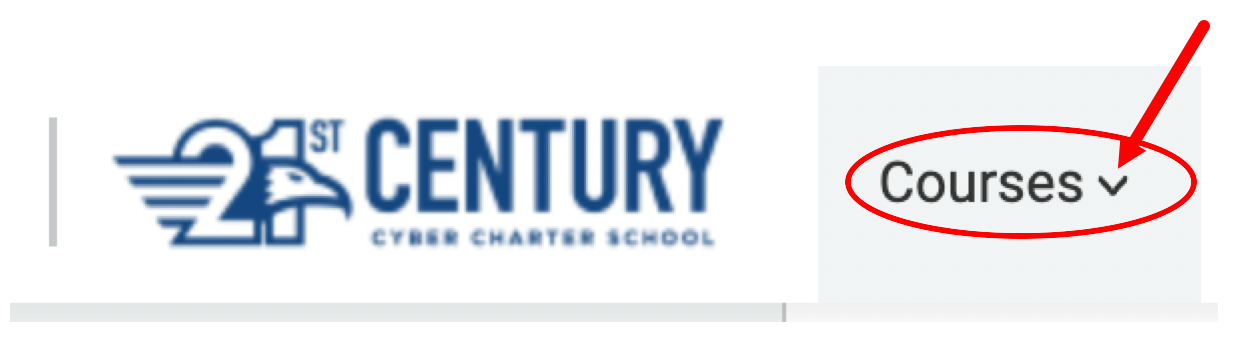
Log into Schoology on your computer. Find the "My Courses" tab in the upper left and click the drop down arrow. Click on the link for Chemistry, which will bring you to the homepage of the Chemistry Schoology Class. Note when scrolling down you will see Google Announcement Slides. Be sure to check these slides for important announcements from your teacher, live lab schedules and work session times. Find and upload images for the items in the questions below.
Question 2
2.


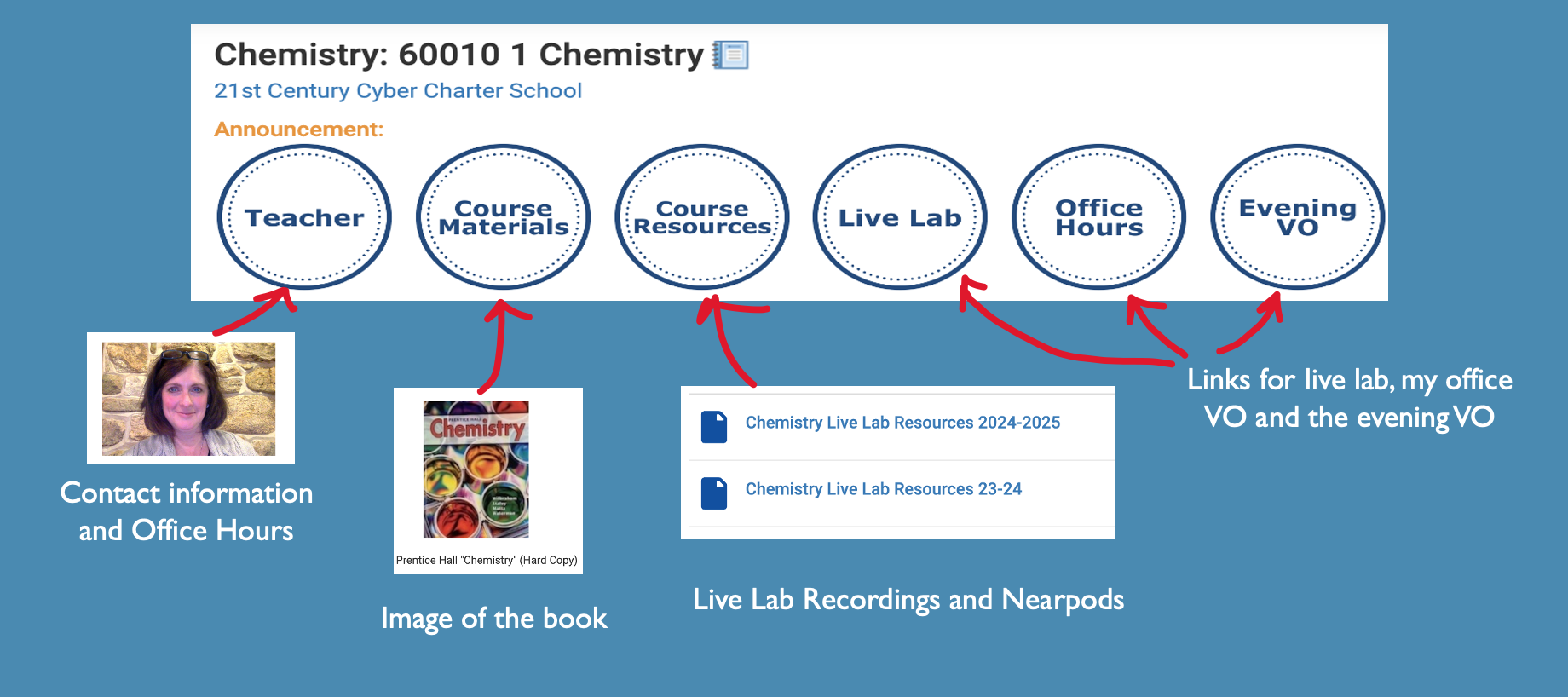
On the Chemistry Course homepage, explore the buttons at the top. The "Live Lab" button gives access to the Chemistry Live Lab Virtual Office. You may enter Live Lab 10 minutes prior to the start of class. There is also a button labeled Mrs. Zaayenga's Office VO. Use this button to bring you to my office for help with assignments or content. Under the "Teacher" button, you will find my contact information and a schedule of my Office hours. (Office hours are also located on the announcement slides) Click the "Teacher" button and take a screenshot of the Office hours schedule. Upload the screenshot below.
(Note: To upload an image click "show your work" and then click on the mountain icon, "My Computer", and upload the screenshot on your desktop.

Question 3
3.

Each folder is labeled with the Quarter and Week. Each week folder contains the recommended lessons and assignments to be completed for that week. Find and click on the "Quarter 1 Week 1" folder. Take a screenshot of the recommended lessons and assignments and upload the image below.

Question 4
4.

Find and click on the "Course Resources" button across the top. Scroll down and click on the folder labeled "Chemistry Live Lab Resources 2024-2025". If you are unable to attend Live Lab or would like to review the Nearpod or Recording from Live Lab, you can click here to find these resources. Take a screenshot of the sheet where the live lab resources will be located and upload below.

Logging Into Your Gizmo Account: Directions

Many of the larger labs in Chemistry are done using interactive simulations in a program called Gizmos. Gizmos can be accessed by going to https://clever.com/in/21cccs. Click through the slides below to learn how to access your explore learning account. Once you have logged into your account in Gizmos, take a screenshot of the first few simulations under the Chemistry class. **Important: Please email me (dzaayega@21cccs.org) if you do not see your name in the chemistry class list and I will add you!
Question 5
5.

Once you have successfully logged into Gizmos, upload the screenshot of the first few simulations located under the Chemistry Class.

Question 6
6.

Describe one unique way you have seen chemistry in your life.

Question 7
7.

Review the topics on the Course Syllabus. What topics are you interested in learning this year in chemistry?