Google Drive files - How to embed (with examples)
star
star
star
star
star
Last updated over 1 year ago
0 Asɛmmisa
Click "File" at the top left, and select "Publish to the web"
Choose the "Embed" tab and adjust settings to your preference
Click "Publish" and copy the embed code that appears
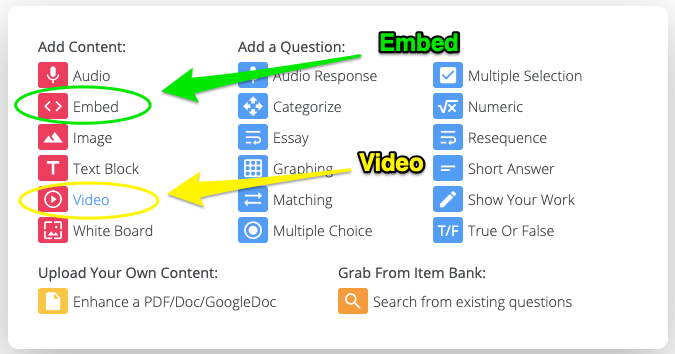
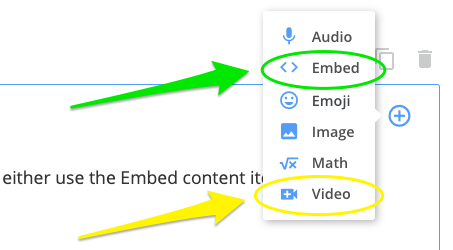
Paste the code into the Embed field in your formative 🙂
Tip: You can edit the height="500px" width="700px" part of the code to adjust how the Sheet displays on your students' devices.
Note: Google Sheets are not editable by students.
Click the "Send" button at the top right
Choose the "Embed HTML" tab and copy the embed code that appears
Paste the code into the Embed field in your formative 🙂
Note: Students can respond to and submit embedded Google Forms!
Sign in to Google, open Google Drive, and then open the audio file you'd like to embed
Click the triple dots at the top right and select "Share"
Choose your link sharing options (make sure your students have access) and click "Copy link"
Paste the link into the Video field in your formative 🙂
Sign in to Google, open Google Drive, and then open the video file you'd like to embed
Click the triple dots at the top right and select "Share"
Choose your link sharing options (make sure your students have access) and click "Copy link"
Paste the link into the Video field in your formative 🙂