🔰 SketchUp for Schools #01: Introduction
star
star
star
star
star
Last updated over 3 years ago
16 questions
Note from the author:
This activity is inspired by the SketchUp for Schools Curriculum lesson of the same name.
2
Checkpoint: Rectangle- Make sure you have completed all of the steps demonstrated so far in your own project.
- Establish an appropriate view of your recent progress and capture a screenshot.
- Upload the screenshot to the Formative canvas and zoom and pan as needed.
Checkpoint: Rectangle
- Make sure you have completed all of the steps demonstrated so far in your own project.
- Establish an appropriate view of your recent progress and capture a screenshot.
- Upload the screenshot to the Formative canvas and zoom and pan as needed.
2
Checkpoint: Box with a line connecting top midpoints- Establish an appropriate view of your recent progress and capture a screenshot.
- Upload the screenshot to the Formative canvas and zoom and pan as needed.
Checkpoint: Box with a line connecting top midpoints
- Establish an appropriate view of your recent progress and capture a screenshot.
- Upload the screenshot to the Formative canvas and zoom and pan as needed.
2
Checkpoint: Raise the roof!- Establish an appropriate view of your recent progress and capture a screenshot.
- Upload the screenshot to the Formative canvas and zoom and pan as needed.
Checkpoint: Raise the roof!
- Establish an appropriate view of your recent progress and capture a screenshot.
- Upload the screenshot to the Formative canvas and zoom and pan as needed.
2
Checkpoint: Colored door- Establish an appropriate view of your recent progress and capture a screenshot.
- Upload the screenshot to the Formative canvas and zoom and pan as needed.
Checkpoint: Colored door
- Establish an appropriate view of your recent progress and capture a screenshot.
- Upload the screenshot to the Formative canvas and zoom and pan as needed.
2
Checkpoint: Round glass window- Establish an appropriate view of your recent progress and capture a screenshot.
- Upload the screenshot to the Formative canvas and zoom and pan as needed.
Checkpoint: Round glass window
- Establish an appropriate view of your recent progress and capture a screenshot.
- Upload the screenshot to the Formative canvas and zoom and pan as needed.
2
Checkpoint: Hidden door, deleted 2D person- Establish an appropriate view of your recent progress and capture a screenshot.
- Upload the screenshot to the Formative canvas and zoom and pan as needed.
Checkpoint: Hidden door, deleted 2D person
- Establish an appropriate view of your recent progress and capture a screenshot.
- Upload the screenshot to the Formative canvas and zoom and pan as needed.
2
Checkpoint: (🎵She's) a brick house!- Establish an appropriate view of your recent progress and capture a screenshot.
- Upload the screenshot to the Formative canvas and zoom and pan as needed.
Checkpoint: (🎵She's) a brick house!
- Establish an appropriate view of your recent progress and capture a screenshot.
- Upload the screenshot to the Formative canvas and zoom and pan as needed.
2
Checkpoint: Roofed- Establish an appropriate view of your recent progress and capture a screenshot.
- Upload the screenshot to the Formative canvas and zoom and pan as needed.
Checkpoint: Roofed
- Establish an appropriate view of your recent progress and capture a screenshot.
- Upload the screenshot to the Formative canvas and zoom and pan as needed.
Required
10
💾 Download your completed model as an SKP file and upload it here.
8
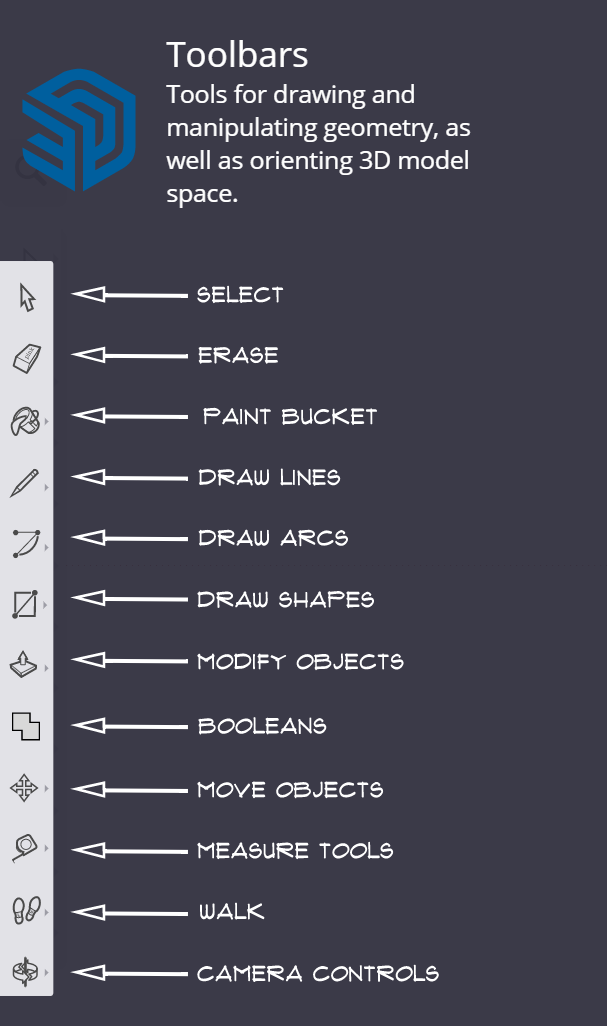
The Toolbar: Match each icon from the toolbar with the tool that it represents. You may need to zoom out to see all of the items. You can also place each item from the left column by selecting it (click it) then selecting (clicking on) the match for it in the right column.
| Draggable item | arrow_right_alt | Corresponding Item |
|---|---|---|
| arrow_right_alt | Select | |
| arrow_right_alt | Erase | |
| arrow_right_alt | Paint Bucket | |
| arrow_right_alt | Move Objects | |
| arrow_right_alt | Draw Shapes | |
| arrow_right_alt | Measure Tools | |
| arrow_right_alt | Camera Controls | |
| arrow_right_alt | Draw Lines |
2
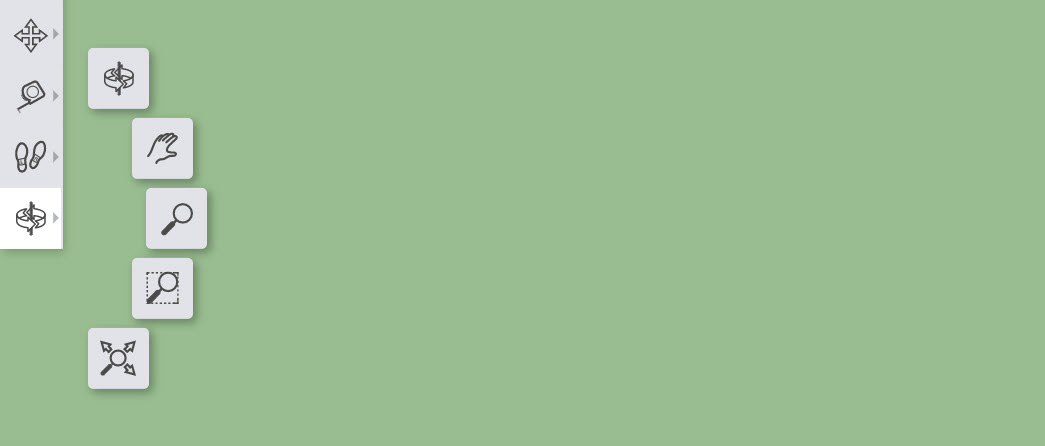
Camera Controls: Identify the icon that represents the Orbit tool in the image below.

2
Camera Controls: Identify the icon that represents the Zoom tool in the image below.

2
Camera Controls: Identify the icon that represents the Pan tool in the image below.

2
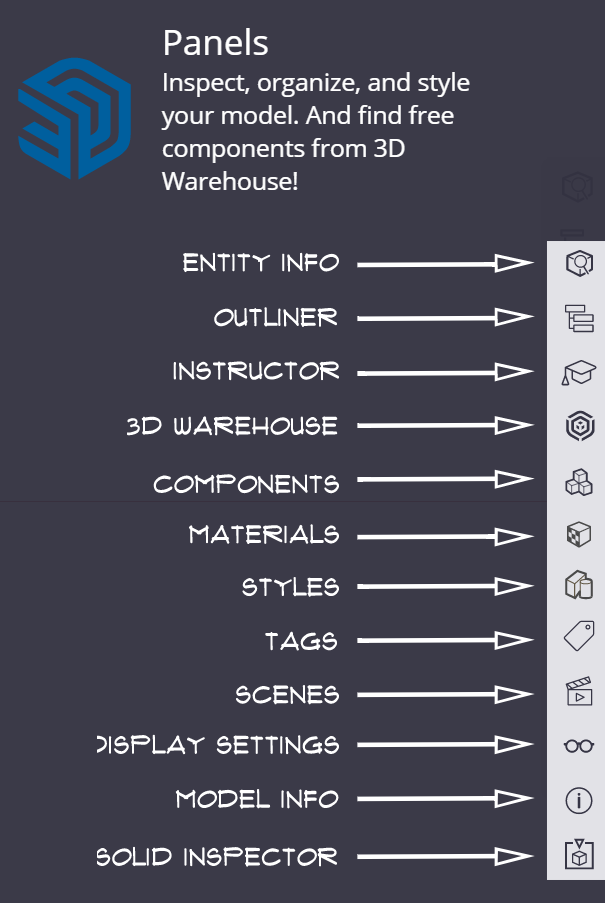
The panels include components, materials, and the instructor. By default, the panels can be found on the __________ of the SketchUp screen.
2
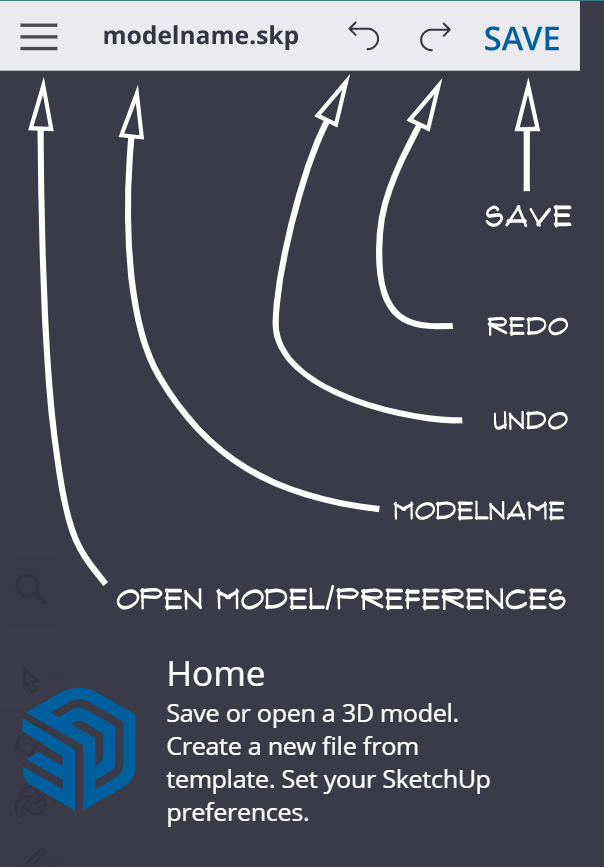
True or False: You will need to click Save near the top left to save your project. It is recommended that you save often so you don't lose the progress you've made.

10
🧠Retrieval Practice:Summarize the content of this lesson. What topics, ideas, tools, and vocabulary were introduced?
🧠Retrieval Practice:
Summarize the content of this lesson. What topics, ideas, tools, and vocabulary were introduced?