Three inference points are identified in the image: an endpoint, an on-edge point, and a midpoint.
Which is the midpoint?
Three inference points are identified in the image: an endpoint, an on-edge point, and a midpoint.
Which is the midpoint?

Explore and learn a variety of SketchUp's tools and features.
Sign in at SketchUp for Schools.
Create a new model.
Title your model so that it includes your name and this lesson's title.
Watch the video below and respond to the questions and prompts found in this Formative activity. As techniques are demonstrated, complete them in your own model. You will capture screenshots of your project and submit them at built-in checkpoints along the way. Pause and rewind as often as necessary.
Efficient strategies may include tab-hopping, side-by-side windows, using multiple screens/devices, etc.
The SketchUp interface includes a variety of menus and toolbars that provide access to its many tools and resources. You can find helpful reference documentation regarding each of the items in these menus at the very end of this Formative activity.
💾 Download your completed model as an SKP file and upload it here.
Match each file type with its description.
| Draggable item | arrow_right_alt | Ade a ɛne no hyia |
|---|---|---|
.png | arrow_right_alt | The file type of an entire SketchUp project. Files like this can be used to open, explore, and edit models in SketchUp. |
.skp | arrow_right_alt | The file type that allows a SketchUp model to be imported into 3D printing software. |
.stl | arrow_right_alt | The file type of most Chromebook screenshots. This is only a basic, 2D image file. |
Three inference points are identified in the image: an endpoint, an on-edge point, and a midpoint.
Which is the midpoint?
Three inference points are identified in the image: an endpoint, an on-edge point, and a midpoint.
Which is the endpoint?
Three inference points are identified in the image: an endpoint, an on-edge point, and a midpoint.
Which is the on-edge point (that is NOT also a midpoint)?
Move Tools: Identify the icon that represents the Scale tool in the image below.
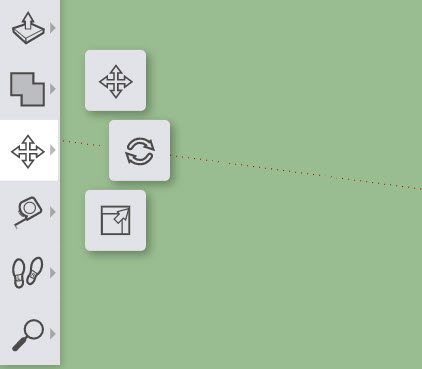
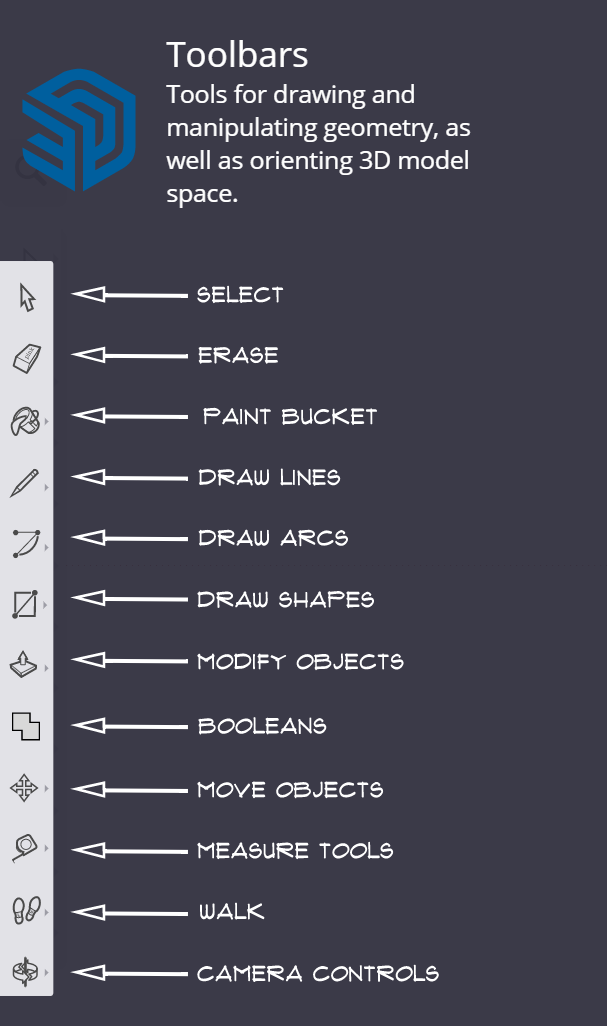
The Toolbar: Match each icon from the toolbar with the tool that it represents. You may need to zoom out to see all of the items. You can also place each item from the left column by selecting it (click it) then selecting (clicking on) the match for it in the right column.
| Draggable item | arrow_right_alt | Ade a ɛne no hyia |
|---|---|---|
| arrow_right_alt | Select | |
| arrow_right_alt | Erase | |
| arrow_right_alt | Paint Bucket | |
| arrow_right_alt | Move Objects | |
| arrow_right_alt | Draw Shapes | |
| arrow_right_alt | Measure Tools | |
| arrow_right_alt | Camera Controls | |
| arrow_right_alt | Draw Lines |
Which tool will reset the zoom level of your model back to its defaults?
This is the tool to use if you find that you have zoomed way too far in or out.
Camera Controls: Identify the icon that represents the Zoom Extents tool in the image below.
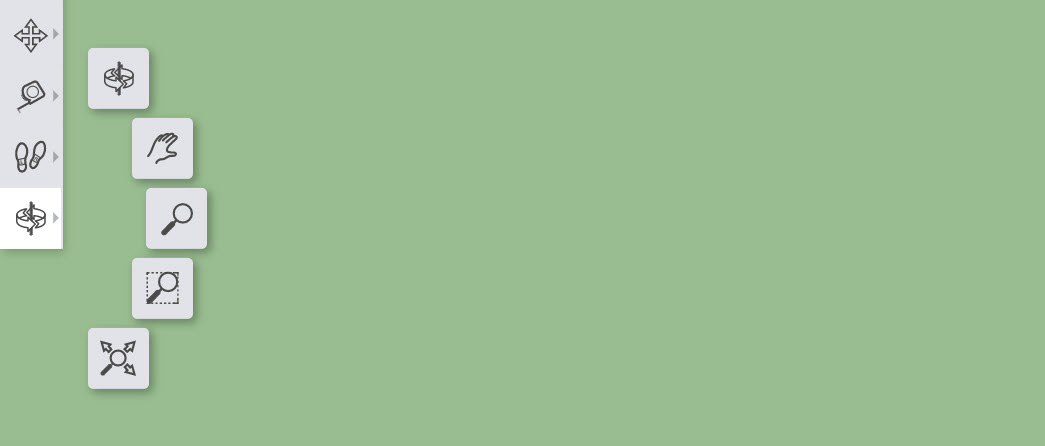
Camera Controls: Identify the icon that represents the Orbit tool in the image below.
Camera Controls: Identify the icon that represents the Zoom tool in the image below.
Camera Controls: Identify the icon that represents the Pan tool in the image below.
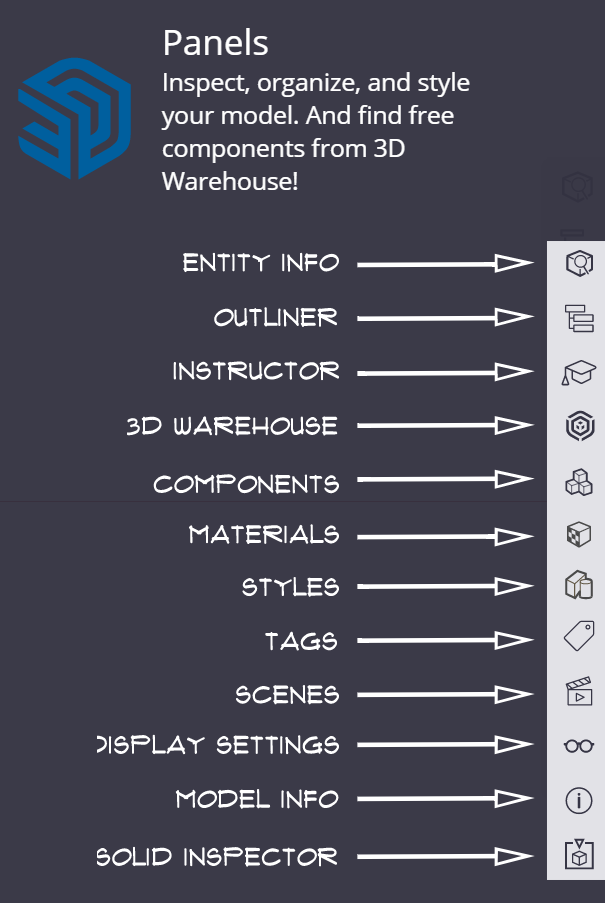
The panels include components, materials, and the instructor. By default, the panels can be found on the of the SketchUp screen.
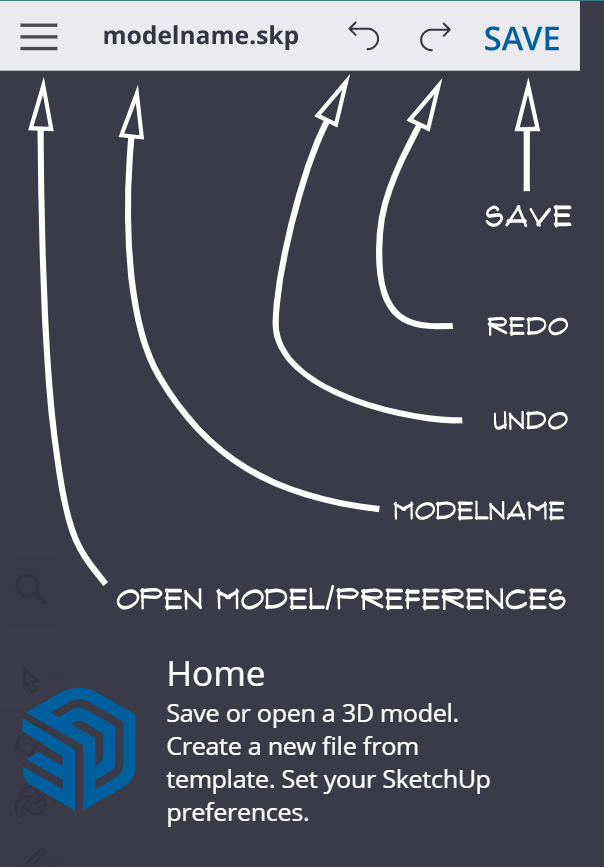
True or False: You will need to click Save near the top left to save your project. It is recommended that you save often so you don't lose the progress you've made.
🧠 Retrieval Practice:
Summarize the content of this lesson. What topics, ideas, tools, and vocabulary were introduced?
Home
Toolbars
Panels
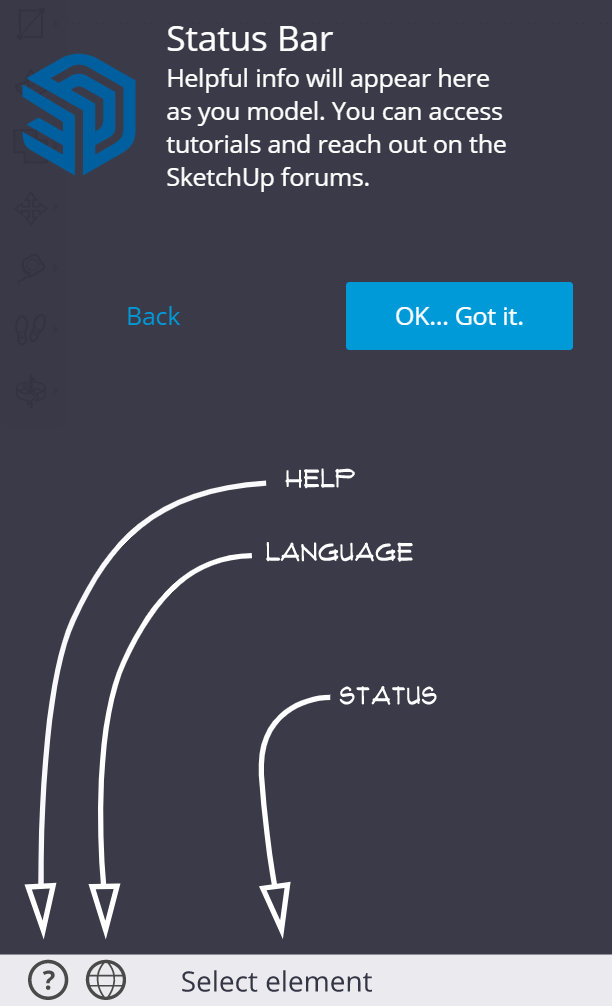
Status Bar
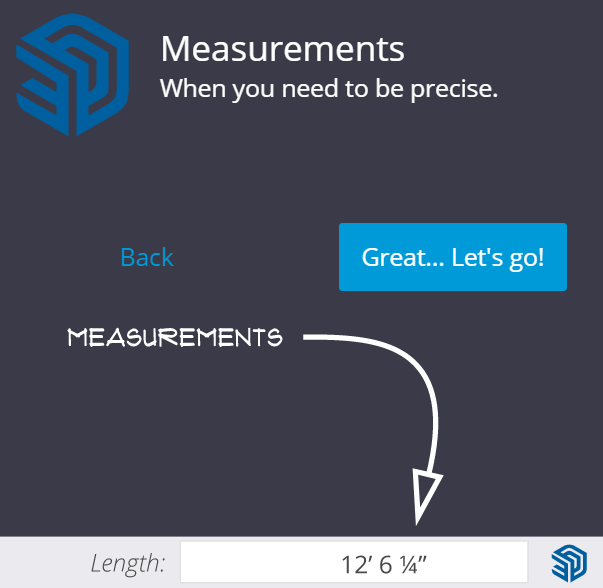
Measurements
⚠️ NOTE: This video uses a different version of SketchUp than what is currently found at SketchUp for Schools. The primary differences are the locations of tools and toolbars.
You should create a new model at SketchUp for Schools and skip ahead in the video to time 0:40.
Checkpoint: Congratulations, it's a box!
Establish an appropriate view of your recent progress and capture a screenshot.
Upload the screenshot to the Formative canvas and zoom and pan as needed.
Checkpoint: A box-shaped void in a box.
Establish an appropriate view of your recent progress and capture a screenshot.
Upload the screenshot to the Formative canvas and zoom and pan as needed.
Checkpoint: Two cylinders: one pulled, one pushed
Establish an appropriate view of your recent progress and capture a screenshot.
Upload the screenshot to the Formative canvas and zoom and pan as needed.
Checkpoint: A new box, with a midpoint to midpoint line segment drawn
Establish an appropriate view of your recent progress and capture a screenshot.
Upload the screenshot to the Formative canvas and zoom and pan as needed.
Checkpoint: Raise the roof on-axis (straight up)
Establish an appropriate view of your recent progress and capture a screenshot.
Upload the screenshot to the Formative canvas and zoom and pan as needed.
Checkpoint: Chim-chimney with healed roof surface
Establish an appropriate view of your recent progress and capture a screenshot.
Upload the screenshot to the Formative canvas and zoom and pan as needed.
Checkpoint: Two steps, a door, and a window
Establish an appropriate view of your recent progress and capture a screenshot.
Upload the screenshot to the Formative canvas and zoom and pan as needed.