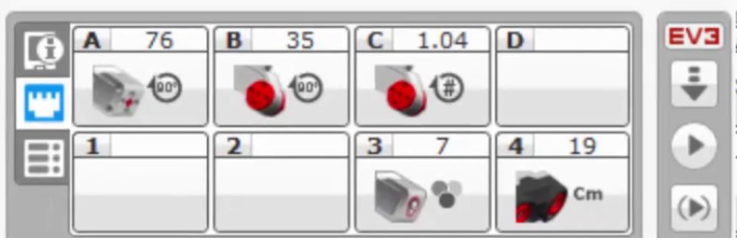
This course includes resources provided by the following:
Joe Olayvar & Evelyn Lindberg in association with the Washington State Library
Carnegie Mellon Robotics Academy from Carnegie Mellon University
📕 Click here to access the LEGO Mindstorms EV3 Programming Basics document in its entirety.
▶️ Click here to access the entire LEGO Mindstorms EV3 YouTube playlist from the Washington State Library.
🎓 Click here to access the free online EV3 course from Carnegie Mellon University.
Categorize each item based on whether it describes the motor ports or the sensor ports.
Input ports
Output ports
Identified with letters: A, B, C, D
Identified with numbers: 1, 2, 3, 4
Motor ports
Sensor ports
Identify the directional buttons that "move the selection on the screen."
Select all that apply.

Which tab first appears when you start up the brick?
Port View allows you to see what is plugged into each port and what sensor or rotation value it is currently seeing. In which tab is Port View found?
In the Run Recent tab, the most recently run program will be at the .
Identify the back button.
The EV3 brick programmed information to through ports.
Identify the button that turns the brick on and can be used to select options on the screen.
How are projects and files in the File Navigation tab are sorted?
Identify the buttons that navigate up and down lists.
Select all that apply.
How can you clear projects that are no longer needed from the brick?
Select all that apply.
In which tab can you configure the sleep timer and WiFi information?
The EV3 brick information from through ports.
Identify the buttons that navigate across menu tabs.
Select all that apply.
Place the steps for turning the EV3 brick off into the correct order.
Press the [B]ack button until you see the Shut Off screen.
Tab [R]ight to highlight the check mark.
Press the [C]enter button to initiate shut down
How do you turn on the EV3?
Where can you find the port that is used to connect the brick to a computer using a USB cable?

How do you navigate the menus of the EV3?
Place these steps for clearing a program from the EV3 using the brick's interface in the correct sequence.
Use the [C]enter button to select the project
Use the [C]enter button again to bring up the trash option
Use the [C]enter button a third time to choose the trash option
Navigate [D]own to the project you want to delete
Navigate to the File Navigation tab
Use the [C]enter button a fourth time to confirm delete
Navigate over to the ✅ to select the confirm checkmark icon
How do you check the motor and sensor values on the EV3?
What does "daisy-chaining" mean in the context of this lesson?
Which of the following describe the [B]ack button?
Select all that apply.
"The EV3 brick's display area is basically a and the button area is your .
Categorize each item based on the menu tab it represents.
Lists all project folders and the programs within them that are loaded on the EV3
Lists all programs recently run
Provides access to navigate apps such as Port View and the Brick Program
Includes general configuration options such as Volume, Sleep, and WiFi settings
Run Recent
File Navigation
Brick Applications
Settings
Identify the button(s) that will stop a running program immediately.
Select all that apply.
Where can you find the speaker volume and other settings on the EV3?
Place these steps for clearing a program from the EV3 using a computer and the EV3 software in the correct sequence.
In the EV3 software on the computer, go to the Hardware page at the bottom-right:
Then, click on the Brick Information icon at the top-left of the Hardware page.
Ensure that the brick is turned on and connected to the computer.
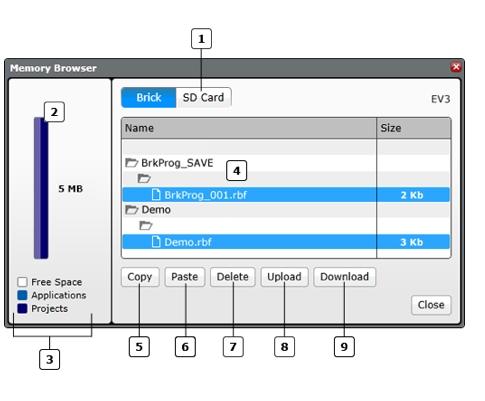
Highlight a program from the Memory Browser screen (area 4 in the image below):
Select Delete (button 7 in the image), and it's gone!
Select the Memory Browser from the Brick Information screen.
🧠 Retrieval Practice:
Summarize the content of this lesson. What topics, ideas, and vocabulary were introduced?