This course includes resources provided by the following:
Joe Olayvar & Evelyn Lindberg in association with the Washington State Library
Carnegie Mellon Robotics Academy from Carnegie Mellon University
📕 Click here to access the LEGO Mindstorms EV3 Programming Basics document in its entirety.
▶️ Click here to access the entire LEGO Mindstorms EV3 YouTube playlist from the Washington State Library.
🎓 Click here to access the free online EV3 course from Carnegie Mellon University.
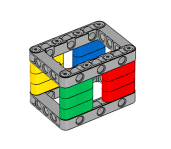
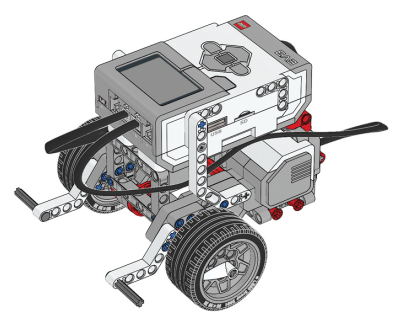
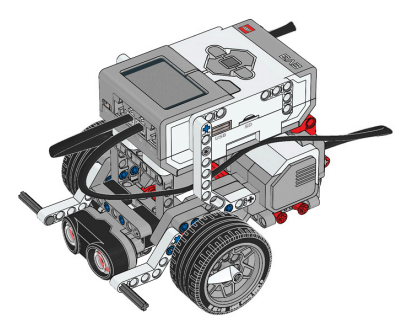
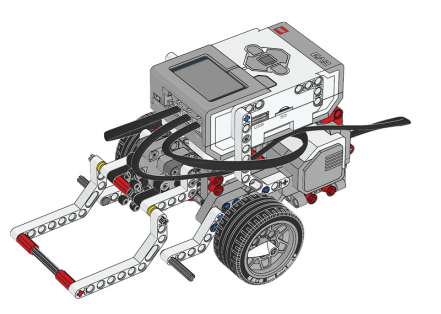
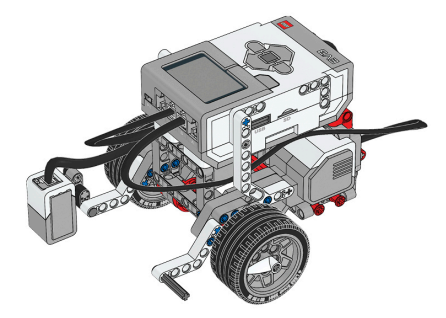
Before you continue, ensure that you have completed the following builds:
Color Sensor (aka Color Sensor Down)
Before continuing, ensure that you have added the following app to your Chromebook:
LEGO® MINDSTORMS® Education EV3
No Chromebook? No problem! Similar software is available for a variety of platforms. See the LEGO MINDSTORMS software downloads page for details.
Why is it important for the robot be able to drive through an orchard?
What is the advantage of an Autonomous Tractor over human drivers?
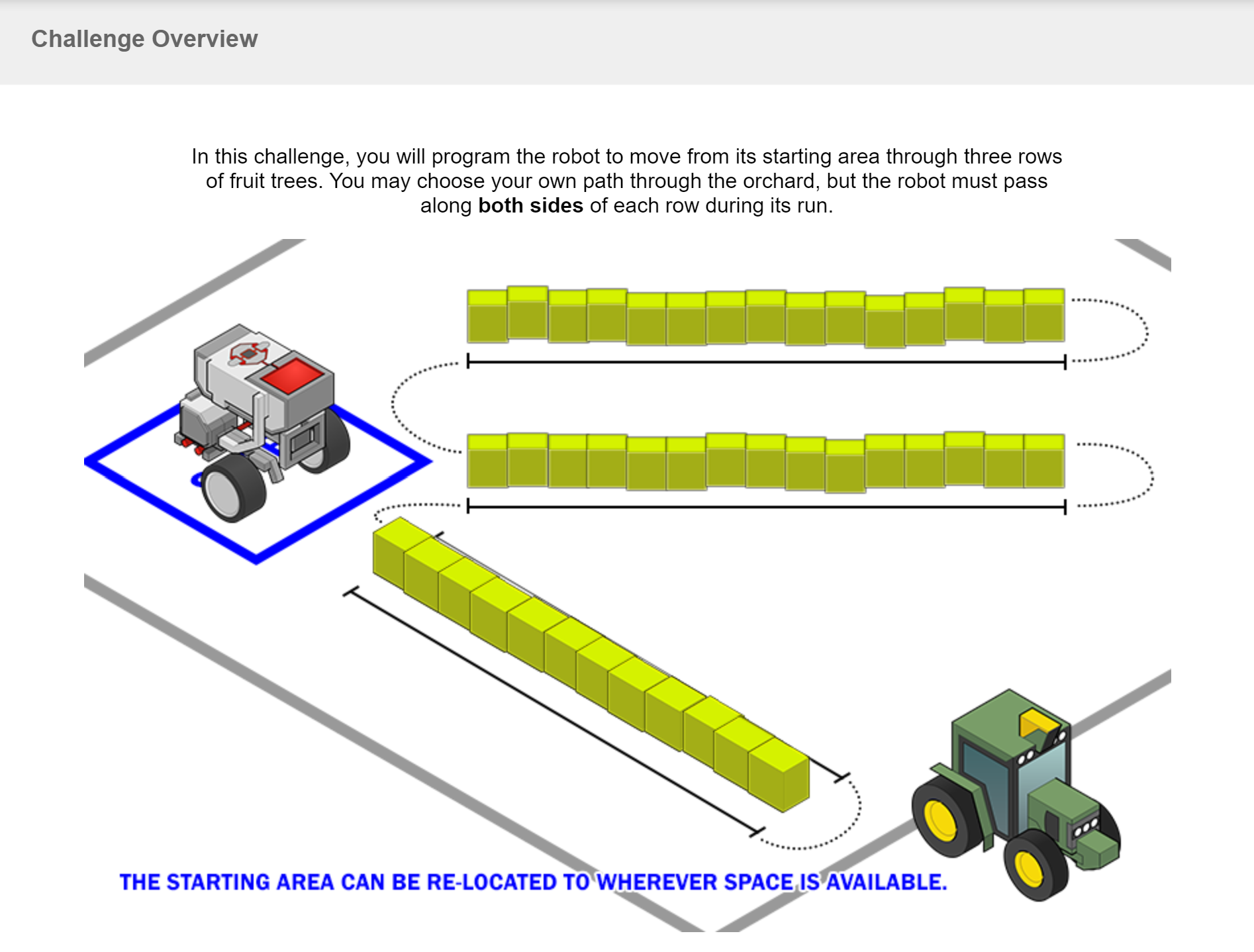

🚜 Orchard Challenge
Program your EV3 robot to successfully complete the challenge.
Run your program to ensure that it performs as expected.
📸 Document It: Capture a screenshot (or multiple screenshots) of your completed program and upload or paste it onto the Formative canvas.
Challenge ID: Identify and describe at least one challenge that you experienced during this activity.
What caused this to be particularly challenging?
How did you overcome the challenge?
What did you learn that may be helpful in the future?
Note that this is a free response Formative item. You can add a variety of media to support your response. Consider how screenshots, videos, whiteboard canvases, audio clips, etc. may enhance your reply.
🧠 Retrieval Practice:
Summarize the content of this lesson. What topics, ideas, and vocabulary were introduced?