This course includes resources provided by the following:
Joe Olayvar & Evelyn Lindberg in association with the Washington State Library
Carnegie Mellon Robotics Academy from Carnegie Mellon University
📕 Click here to access the LEGO Mindstorms EV3 Programming Basics document in its entirety.
▶️ Click here to access the entire LEGO Mindstorms EV3 YouTube playlist from the Washington State Library.
🎓 Click here to access the free online EV3 course from Carnegie Mellon University.
Categorize each item based on the Flow Block(s) it describes.
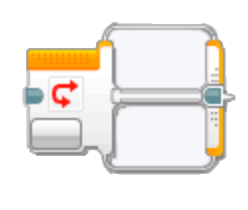
Causes a program to change course when an "IF" condition is met.
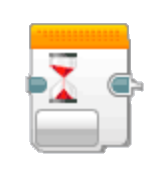
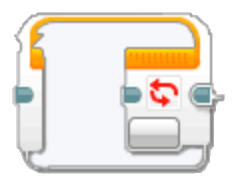
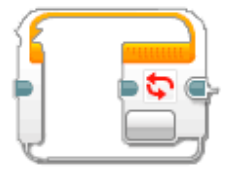
Causes a program to "run until" a specific condition is met.
Flow blocks and action blocks can be placed within this type of block.
Start Block
Wait Block
Switch Block
Loop Block
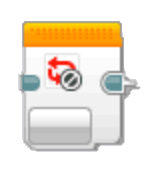
Loop Interrupt Block
Categorize each item based on the Action Block field it describes.
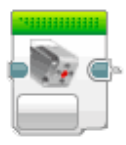
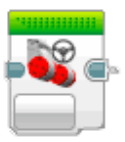
Displays an icon that indicates the action component being configured by that block.
Indicates what port that particular block has been assigned.
May include Direction, Power, Rotations, and Brake.
Sets the type of Input Values that will be available to set parameters for that block.
Vary according to which Mode type has been selected.
Port Selector
Block Type
Mode
Input Values
Identify the location of the Brake selector in the image of a Move Steering Action Block.

Match each flow block with its default mode.
| Draggable item | arrow_right_alt | Corresponding Item |
|---|---|---|
Switch | arrow_right_alt | Time |
Wait Block | arrow_right_alt | Unlimited |
Loop | arrow_right_alt | Touch Sensor |
The EV3 brick information from through ports.
Identify the motors(s) in the image below. Select all that apply.

Match each Move Steering block Direction setting with the type of turn it creates.
| Draggable item | arrow_right_alt | Corresponding Item |
|---|---|---|
Direction: -100 | arrow_right_alt | Arc/swing turn to the right |
Direction: 50 | arrow_right_alt | Sharp/pivot turn to the left |
Direction: -10 | arrow_right_alt | Spin/point turn right (clockwise) |
Direction: -50 | arrow_right_alt | Arc/swing turn to the left |
Direction: 30 | arrow_right_alt | Sharp/pivot turn to the right |
Direction: 100 | arrow_right_alt | Spin/point turn left (counterclockwise) |
Identify the location of the Input Values in the image of a Move Steering Action Block.
Select all that apply.
Place the steps for turning the EV3 brick off into the correct order.
Press the [B]ack button until you see the Shut Off screen.
Tab [R]ight to highlight the check mark.
Press the [C]enter button to initiate shut down
Identify the medium motor(s) in the image below.
Select all that apply.
The EV3 brick programmed information to through ports.
Identify the back button.

Flow blocks increase program functionality and have parameters that most other blocks.
Which tab first appears when you start up the brick?
Identify the button that turns the brick on and can be used to select options on the screen.
How can you clear projects that are no longer needed from the brick?
Select all that apply.
Identify the location of the Port Selector in the image of a Move Steering Action Block.
How do you check the motor and sensor values on the EV3?
Categorize each item based on the menu tab it represents.
Lists all programs recently run
Provides access to navigate apps such as Port View and the Brick Program
Lists all project folders and the programs within them that are loaded on the EV3
Includes general configuration options such as Volume, Sleep, and WiFi settings
Run Recent
File Navigation
Brick Applications
Settings
Identify the button(s) that will stop a running program immediately.
Select all that apply.
Port View allows you to see what is plugged into each port and what sensor or rotation value it is currently seeing. In which tab is Port View found?
Where is the Palette located?

Categorize each programming block based on its type.
Action
Flow Control
Where is the Canvas located?
Which icon on the Hardware Page provides access to Brick Information?

What does it mean for an EV3 to run untethered?
Which icon on the Hardware Page provides access to Port View?
Identify the location of the Rotations parameter in the image of a Move Steering Action Block.
Categorize each item based on the Hardware Page tab it describes.
Downloads programs to the brick and immediately runs them.
Provides general information: battery level, EV3 name, etc.
Downloads programs to the brick for non-connected operation.
When creating programs, this tab provides invaluable information!
Not covered in this lesson.
Runs a specific selected block, or string of blocks to test out certain parts of a program.
Provides real-time information regarding connected motor and sensor status.
Brick Information
Port View
Available Bricks
Download
Download and Run
Run Selected