This course includes resources provided by the following:
Joe Olayvar & Evelyn Lindberg in association with the Washington State Library
Carnegie Mellon Robotics Academy from Carnegie Mellon University
📕 Click here to access the LEGO Mindstorms EV3 Programming Basics document in its entirety.
▶️ Click here to access the entire LEGO Mindstorms EV3 YouTube playlist from the Washington State Library.
🎓 Click here to access the free online EV3 course from Carnegie Mellon University.
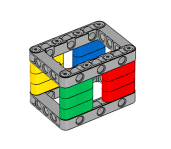
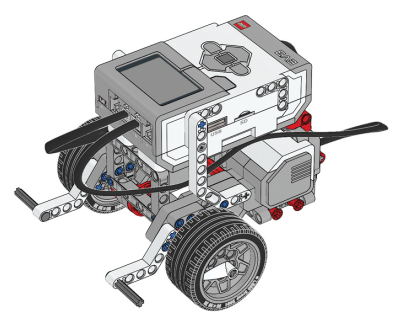
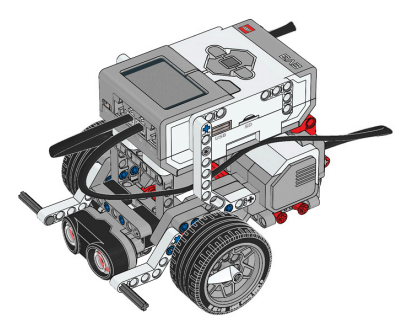
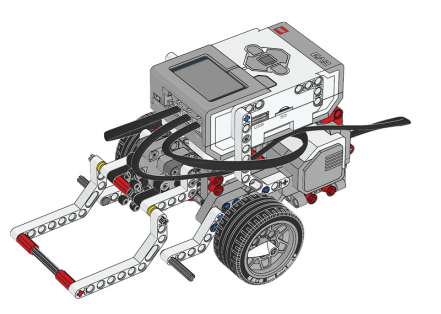
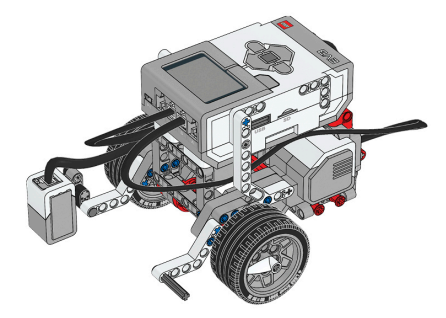
Before continuing, ensure that you have completed the following builds:
Color Sensor (aka Color Sensor Down)
Before continuing, ensure that you have added the following app to your Chromebook:
LEGO® MINDSTORMS® Education EV3
No Chromebook? No problem! Similar software is available for a variety of platforms. See the LEGO MINDSTORMS software downloads page for details.
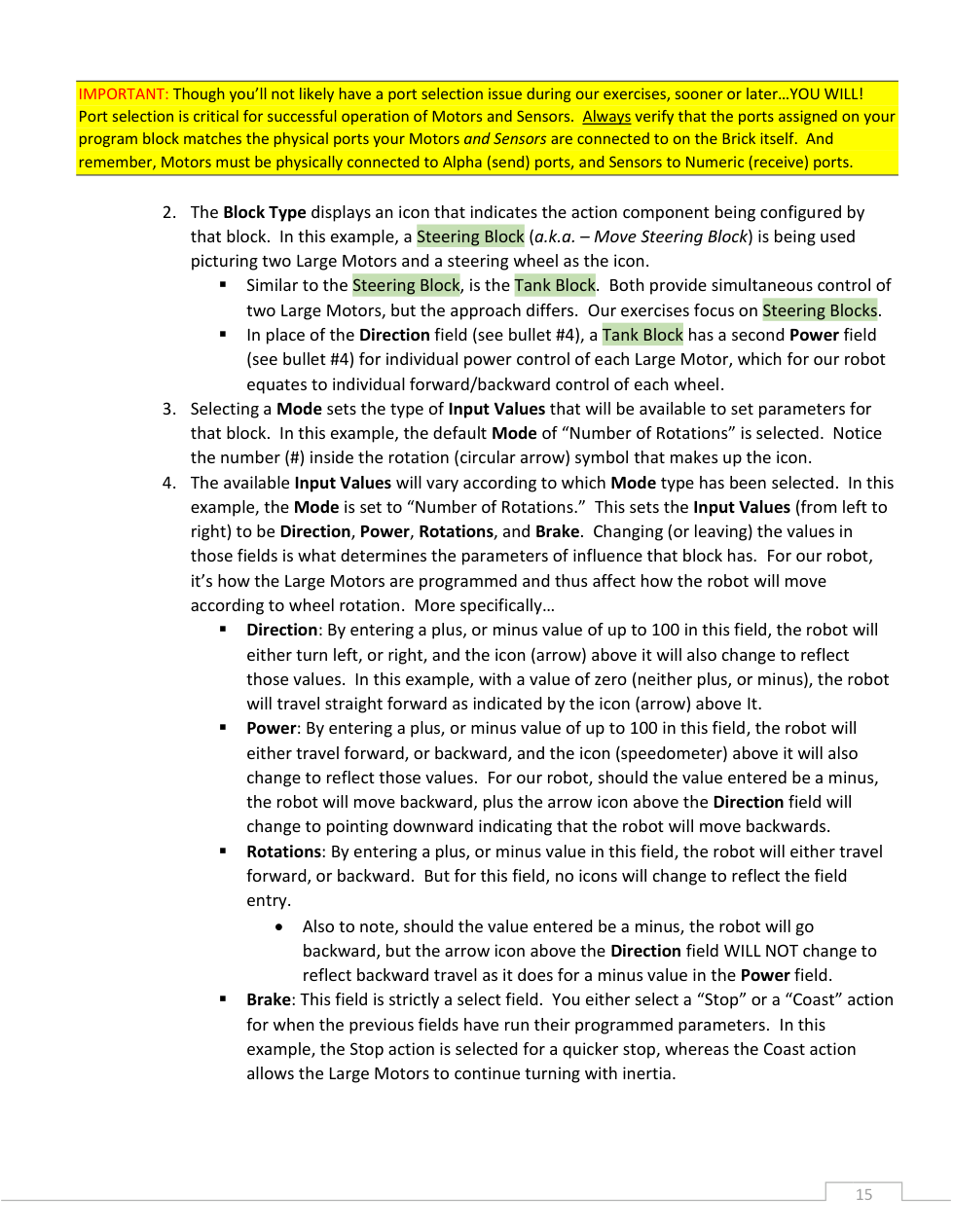
Match each Move Steering block Direction setting with the type of turn it creates.
| Draggable item | arrow_right_alt | Corresponding Item |
|---|---|---|
Direction: -100 | arrow_right_alt | Arc/swing turn to the right |
Direction: 100 | arrow_right_alt | Sharp/pivot turn to the left |
Direction: 50 | arrow_right_alt | Spin/point turn right (clockwise) |
Direction: -50 | arrow_right_alt | Arc/swing turn to the left |
Direction: 30 | arrow_right_alt | Sharp/pivot turn to the right |
Direction: -10 | arrow_right_alt | Spin/point turn left (counterclockwise) |
Identify the Move Tank action block.
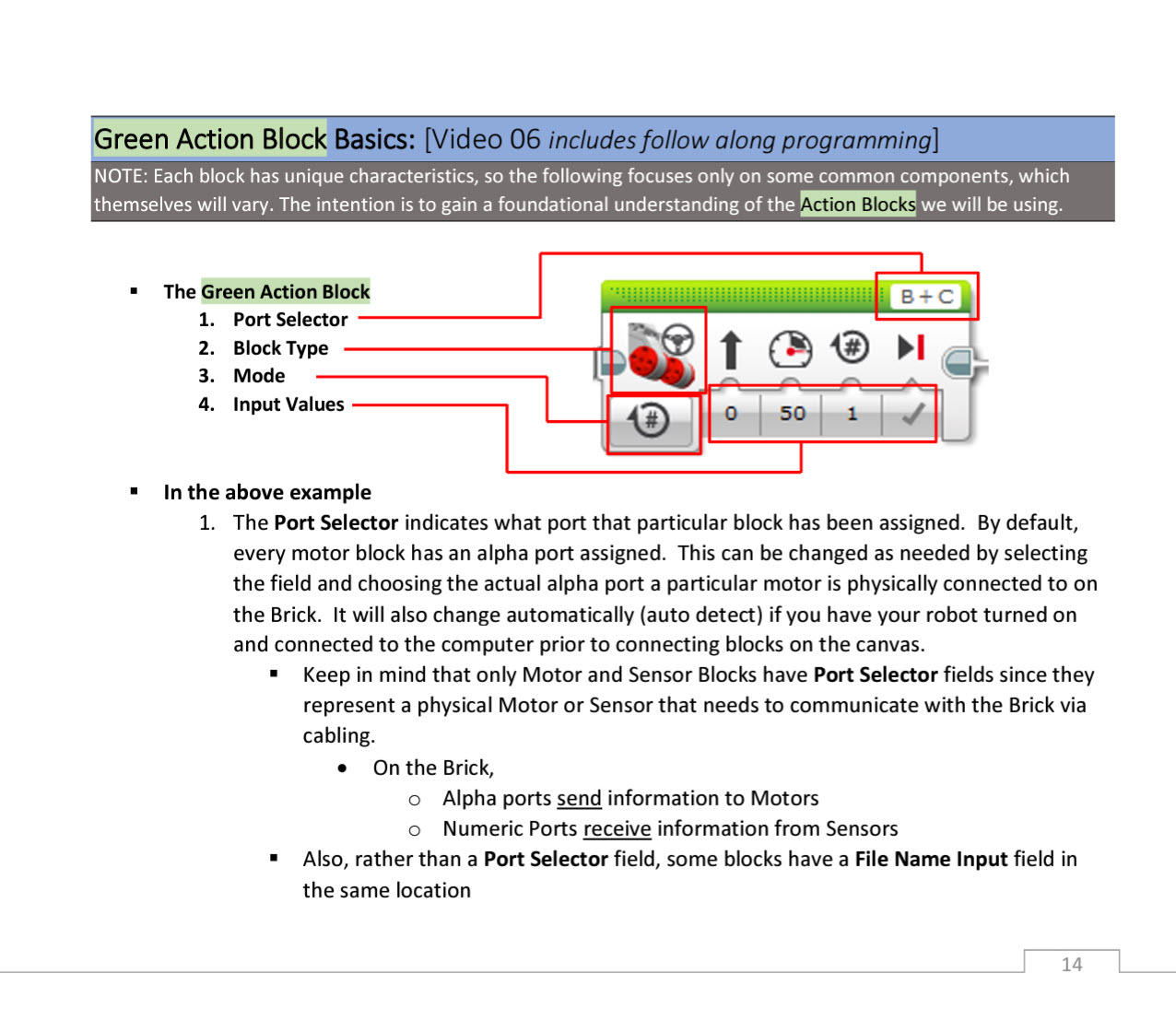
Identify the location of the Port Selector in the image of a Move Steering Action Block.

The EV3 brick information from through ports.
Identify the location of the Block Type in the image of a Move Steering Action Block.
The EV3 brick programmed information to through ports.
Identify the location of the Mode in the image of a Move Steering Action Block.
Identify the motors(s) in the image below. Select all that apply.

Identify the location of the Input Values in the image of a Move Steering Action Block.
Select all that apply.
Rather than a Port Selector field, some blocks have a(n) field in the same location.
Identify the sensor(s) in the image below. Select all that apply.
Identify the location of the Rotations parameter in the image of a Move Steering Action Block.
Categorize each item based on the Action Block field it describes.
Sets the type of Input Values that will be available to set parameters for that block.
Displays an icon that indicates the action component being configured by that block.
Indicates what port that particular block has been assigned.
Allows you to select the correct port for the action block.
Vary according to which Mode type has been selected.
May include Direction, Power, Rotations, and Brake.
Port Selector
Block Type
Mode
Input Values
Identify the location of the Power parameter in the image of a Move Steering Action Block.
Identify the location of the Brake selector in the image of a Move Steering Action Block.
Identify the location of the Direction parameter in the image of a Move Steering Action Block.
🧠 Retrieval Practice:
Summarize the content of this lesson. What topics, ideas, and vocabulary were introduced?
In order to get the desired turn, you have to balance with .
What can Power also be thought of as?
Negative power combined with negative rotations results in motion. To avoid confusion, it is recommended that you only use numbers in the field.
🖥️ Program It: Use your own programming software to link a Move Steering block to the Flow Block Start Button. Configure the Action block as follows:
Mode: Rotations
Direction: 30
Power: 75
Rotations: 3
Brake: no
📸 Document It: Take a screenshot of your program and upload or paste it onto the Formative canvas.
The port selection on action blocks must match the connections in ports on the .
"Best practice is to have your robot
This can help you to avoid mistakes and confusion.
🖥️ Program It: Move Tank: Arc Turn (aka swing turn)
Use your own EV3 programming software to complete the following:
Connect a Move Tank action block to the start block.
Configure the action block so that it would result in an "arc" (aka swing) turn to the left.
📸 Document It:
Capture a screenshot of your program.
Upload or paste your screenshot onto the Formative canvas.
🖥️ Program It: Move Tank: Sharp Turn (aka pivot turn)
Use your own EV3 programming software to complete the following:
Configure the Move Tank action block so that it would result in a "sharp" (aka pivot) turn to the right.
📸 Document It:
Capture a screenshot of your program.
Upload or paste your screenshot onto the Formative canvas.
🖥️ Program It: Move Tank: Spin (aka point turn)
Use your own EV3 programming software to complete the following:
Configure the Move Tank action block in your program so that it would result in a "spin" (aka point turn) to the left (counterclockwise).
📸 Document It
Capture a screenshot of your program.
Upload or paste your screenshot onto the Formative canvas.
🖥️ Program It
Display Text: hello world
Use your own EV3 programming software to complete the following:
Connect a Display block to the start block.
Configure the Display block in your program so that it would result in the text "hello world" displayed on the brick's display.
📸 Document It
Capture a screenshot of your program.
Upload or paste your screenshot onto the Formative canvas.
🖥️ Program It: Display image: Black eye
Use your own EV3 programming software to complete the following:
Configure the Display block in your program so that it would result in the "Black eye" image displayed on the brick's display.
📸 Document It:
Capture a screenshot of your program.
Upload or paste your screenshot onto the Formative canvas.
🖥️ Program It: Sound: Dog growl
Use your own EV3 programming software to complete the following:
Connect a Sound block to the start block.
Configure the Sound block in your program so that it would result in the audio file "Dog growl" playing through the brick's speaker.
📸 Document It:
Capture a screenshot of your program.
Upload or paste your screenshot onto the Formative canvas.
What are the two fixes described for the "persnickety" behaviors sometimes experienced from the Display and Sound blocks?