This course includes resources provided by the following:
Joe Olayvar & Evelyn Lindberg in association with the Washington State Library
Carnegie Mellon Robotics Academy from Carnegie Mellon University
📕 Click here to access the LEGO Mindstorms EV3 Programming Basics document in its entirety.
▶️ Click here to access the entire LEGO Mindstorms EV3 YouTube playlist from the Washington State Library.
🎓 Click here to access the free online EV3 course from Carnegie Mellon University.
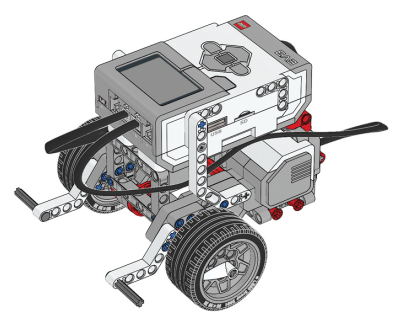
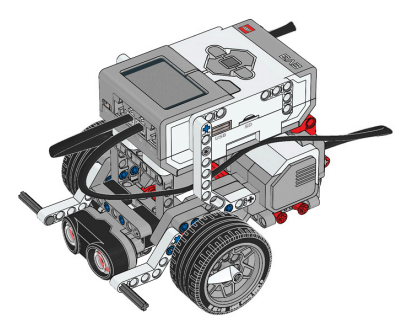
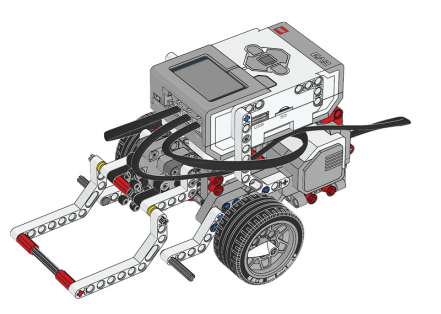
Before you continue, ensure that you have completed the following builds:
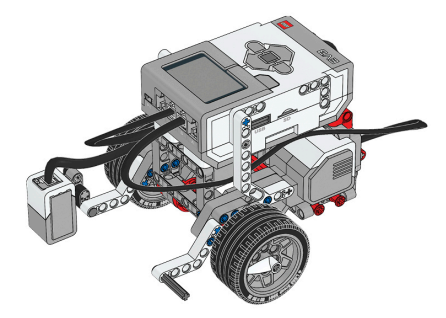
Color Sensor (aka Color Sensor Down)
Before continuing, ensure that you have added the following app to your Chromebook:
LEGO® MINDSTORMS® Education EV3
No Chromebook? No problem! Similar software is available for a variety of platforms. See the LEGO MINDSTORMS software downloads page for details.
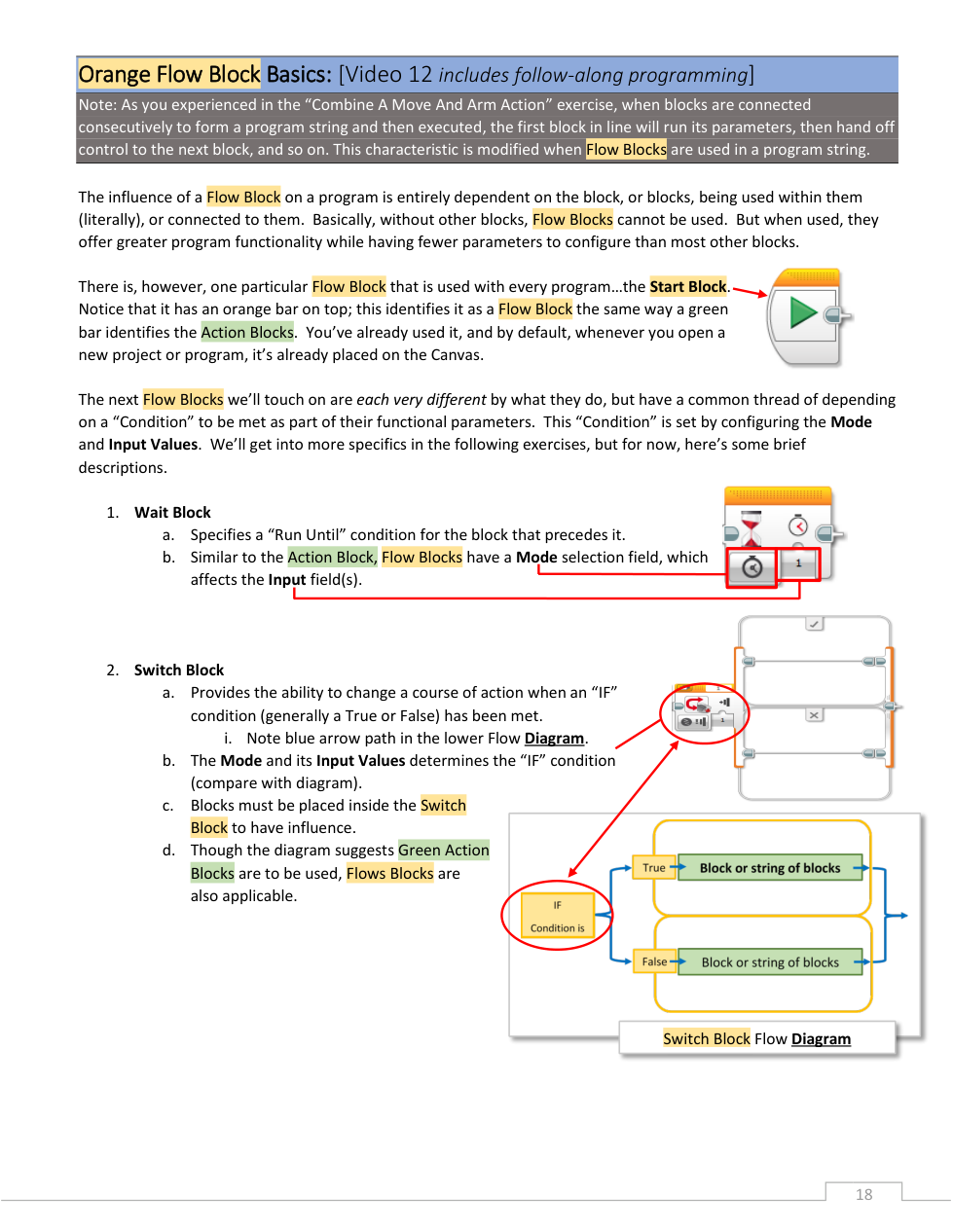
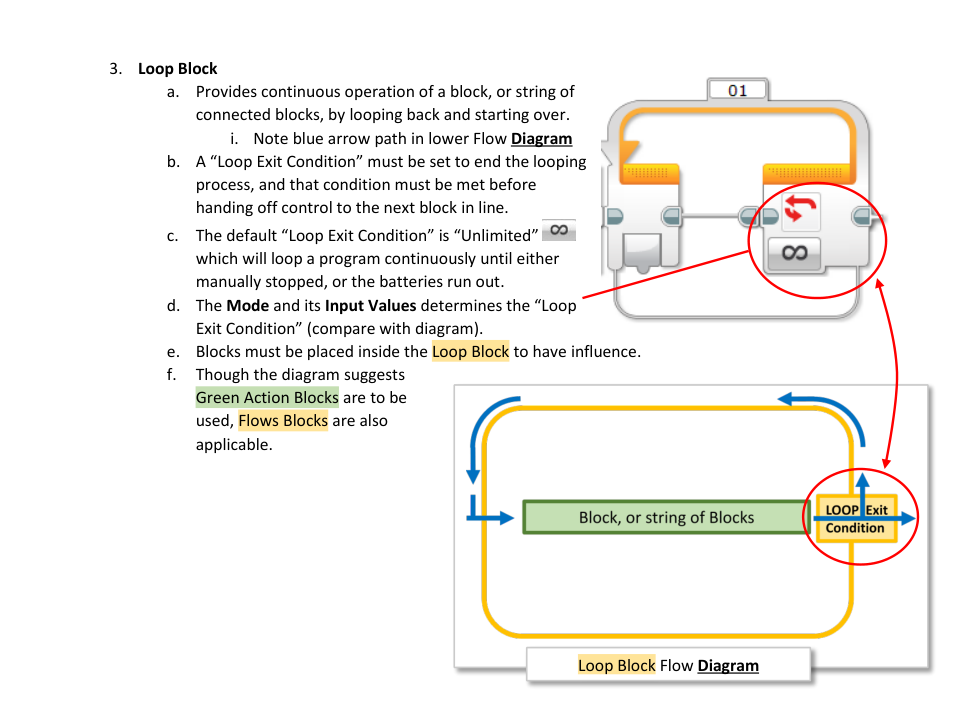
Match each flow block with its default mode.
| Draggable item | arrow_right_alt | Corresponding Item |
|---|---|---|
Switch | arrow_right_alt | Time |
Wait Block | arrow_right_alt | Unlimited |
Loop | arrow_right_alt | Touch Sensor |
"Basically, without other blocks,
Categorize each item based on the Flow Block(s) it describes.
Causes a program to "run until" a specific condition is met.
Causes a program to change course when an "IF" condition is met.
Flow blocks and action blocks can be placed within this type of block.
Start Block
Wait Block
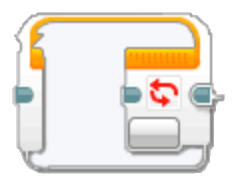
Switch Block
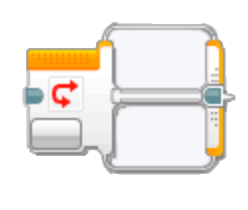
Loop Block
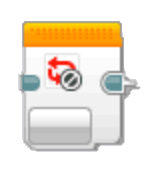
Loop Interrupt Block
Flow blocks increase program functionality and have parameters that most other blocks.
🧠 Retrieval Practice:
Summarize the content of this lesson. What topics, ideas, and vocabulary were introduced?
Flow blocks are basically useless without other blocks.
🖥️ Program It: Use your own programming software to link a Wait block to the Start block. Configure the Wait block as follows:
Mode: Color Sensor > Compare > Color
Port: 2
📸 Document It: Take a screenshot of your program and upload or paste it onto the Formative canvas.
🖥️ Program It: Use your own programming software to link a Wait block to the Start block. Configure the Wait block as follows:
Mode: Ultrasonic Sensor > Compare > Distance Centimeters
Port: 4
📸 Document It: Take a screenshot of your program and upload or paste it onto the Formative canvas.
🖥️ Program It: Use your own programming software to add a Steering block between the Start block and the Wait block. Configure them as follows:
Steering: Drive straight forward at power 50 indefinitely (no stop).
Wait: Until the color sensor senses the color of an available tape that contrasts with an available driving surface. (Example: blue tape on a white floor.)
📸 Document It: Take a screenshot of your program and upload or paste it onto the Formative canvas.
The of a flow block sets a condition that must be met before the program continues.
What is a loop exit condition?
🖥️ Program It: Use your own programming software to add a Loop to the Start block and a Steering block inside of the Loop block. Configure as follows:
Steering: Drive straight forward at power 30 indefinitely (no stop).
Loop: Set loop exit condition to color sensor senses red.
📸 Document It: Take a screenshot of your program and upload or paste it onto the Formative canvas.
🖥️ Program It: Use your own programming software to add a Switch block to the Start block and insert a Steering block to the true track and another Steering block to the false track within the Switch block. Configure them as follows:
Switch: Condition: Color sensor senses blue.
IF True: Drive straight forward for 2 rotations at power 30.
IF False: Turn right 90 degrees.
📸 Document It: Take a screenshot of your program and upload or paste it onto the Formative canvas.
💾 Keep this program for use again later in the lesson.
How do you think we can make this Switch block code run multiple times or continuously?
🖥️ Program It: Move your Switch block from before into a Loop block and configure the program as follows:
Loop: Exit condition: Ultrasonic Sensor: Senses distance
Switch True: Drive straight forward indefinitely (Mode: ON) at power 30.
Switch False: Drive straight backward indefinitely (Mode: ON) at power 10.
After Loop Exit: Add a Sound block to the right of the Loop block and configure it to play a sound.
📸 Document It: Take a screenshot of your program and upload or paste it onto the Formative canvas.