This course includes resources provided by the following:
LEGO Education
CS-STEM Network from Carnegie Mellon University
EV3-Scratch documentation provided by Raphael Holzer
Joe Olayvar & Evelyn Lindberg in association with the Washington State Library
🌏 Click here to access the LEGO Education website.
📑 Click here to access the EV3-Scratch documentation.
🎓 Click here to access the online EV3 course from CS2N.
📕 Click here to access the LEGO Mindstorms EV3 Programming Basics document in its entirety.
▶️ Click here to access the entire LEGO Mindstorms EV3 YouTube playlist from the Washington State Library.
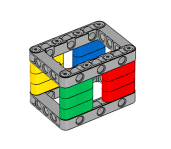
Before you continue, ensure that you have completed the following builds:
What does a gyro sensor help the robot to do?
Why does the autonomous mower use a gyro sensor if it already has GPS?
Why should your robot use a gyro sensor even if it already has rotation sensors?
In this lesson, you will use the EV3 Gyro Sensor to perform a measured turn, without relying on wheel rotations.

Gyro Sensor Configuration

The Gyro Sensor is required to complete sections of this chapter as well for the final challenge.
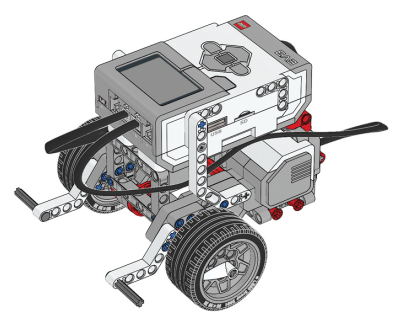
Gyro Sensor Driving Base Build Instructions: https://drive.google.com/file/d/1Mf-6riRkqFsPERSk4rorgjh4R2PkXphX/view?usp=share_link
The Gyro sensor measures the amount of rotation that the sensor experiences, in the directions indicated by the arrows.

Since the sensor is attached to the robot's body, it measures the amount that the robot's body turns.

Create a new project and program.
.gif "null")
Add a “start moving” Block to the program.

Now, make it a "turn in place" to the right by setting its Steering value all the way to the right (clockwise).

Go to the light blue Sensors palette, and add a Gyro Sensor “wait until angle” Block to your program.

Set its mode to “changed more than." Then, set the value to 90 degrees.

This means that the robot will wait until the angle changes more than 90 degrees before it moves on to the next block.
After the Wait, set it to turn the motors Off by adding a “stop moving” Block.
.gif "null")
Drag a “stop [and exit program]” block from the Control palette, and place it at the bottom of the stack.

Rename your Project As… "GyroTurn"

Download and run the program.

Because of the way it is attached to the robot, the Gyro Sensor measures:
What does the number 90 represent in the block below?
In the previous lesson, you programmed your robot to turn until its Gyro sensor read 90 degrees, then Stop.

However, when run, the robot always turns a noticeable amount past 90 degrees. Why?
1) The accuracy of the sensor The sensor will only be accurate to within 3 degrees of the number it displays, so "90" could really be anywhere between 87 and 93.

However, if you look at the EV3's sensor readings screen, you can see that the EV3 knows that it has turned more than 90 degrees.

The second source of overshoot is latency.

2) The Gyro Sensor The Gyro sensor is more complex internally than something like the Touch Sensor. The Gyro sensor takes a fraction of a second to detect and process the motion, and another fraction of a second to send that information to the EV3.

The small delays can add up to a significant amount of time before the robot actually sees the 90-degree reading, making it stop late, and turn past the desired point.

3) Momentum Finally, the robot can over-turn slightly because of simple momentum. Even after the motors are told to stop, it takes a little while for the robot to actually come to a halt.

These factors combine to make the robot turn too far. Some of the problems are unavoidable: for example, you cannot make the sensor more sensitive than it actually is.
🚦Try it! Make Modifications
1. Due to these factors, you can attempt to compensate by telling it to stop early by:
Looking for a reading that comes slightly before the one you actually want. For instance, if you want to turn to 90 degrees, tell the robot to wait until it sees 80 degrees instead – by the time it's actually SEEING 80, the robot might actually be at 90.

2. Cutting down on the amount of momentum that the robot has to stop, you could lower the speed of the turn. To do this, you can place a “set movement speed to” block and set the speed to something like 25%.

Make these changes now and try them on your robot!
❓ What happens?
The robot ends up moving much closer to the correct amount.
It is very important to remember that while these steps improve the performance of the robot, they are workarounds – errors designed to balance out other errors. They fix the symptoms of the problem but do not fix the underlying cause.
They are neither as systematic nor as robust as proper solutions, and so you should expect some occasionally inconsistent results.

Which of the following factors contributes to the "overturning" problem?
True or False: A 90-degree turn causes a 90-degree CHANGE in direction, regardless of whether the turn is to the left or right.
The EV3 Gyro Sensor is a MEMS Sensor (Micro-ElectroMechanical System)
📦 Square Box
Using a Gyro Sensor, program the robot to go around a square box!

Program the robot to complete one full lap around a square (or rectangular) object using the Gyro Sensor to accurately make turns at each corner.
🌐 A virtual version of this challenge is available HERE.
📸 Document It: Capture a screenshot (or multiple screenshots) of your completed program and upload or paste it onto the Formative canvas.
⬆️ Upload It: Upload your completed program.
🌾 Mower
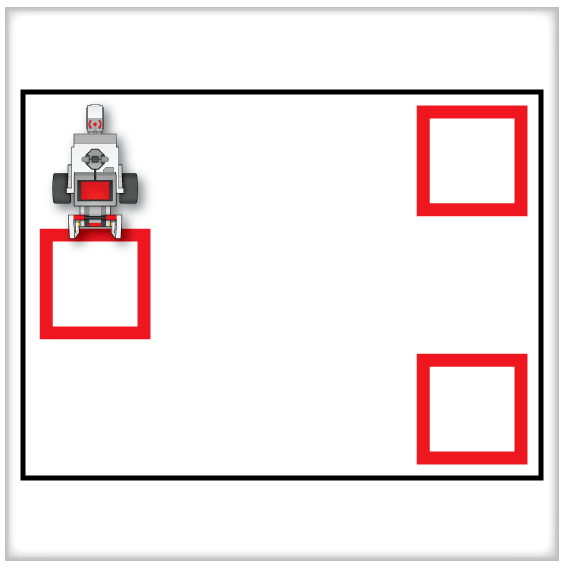
For this challenge, program the robot to erase or clear the entire surface of debris. The robot is able to move freely in straight lines. However, there are three zones marked on the surface. When the robot makes a turn while in these zones, the robot must be picked up (only DURING the turn), placed back down, and then resume going through the rest of its program.

Rules and Procedures:
The robot must clear the board of marks or parts to complete its mission.
If any part of the robot is in the mud zone (red squares) at any point during a turn, it must be picked up and placed back down, as close to the same spot and facing as possible.
Use overlapping paths to compensate for sensor inaccuracies
Hints:
Because the robot’s wheels continue to spin in the air when it is picked up, Rotations or Time will not be reliable for turns in the mud.
The Gyro Sensor responds only to the robot’s body turning and is unaffected by interruptions like being picked up.
It is unlikely that the eraser (or scoop) will perform perfectly, especially near the edges of its reach. Plan your robot’s course accordingly.
Use an adjustment factor to compensate for the fact that the robot won’t see 90 degrees until it is past 90.
🌐 A virtual version of this challenge is available HERE.
📸 Document It: Capture a screenshot (or multiple screenshots) of your completed program and upload or paste it onto the Formative canvas.
⬆️ Upload It: Upload your completed program.

🧠 Retrieval Practice:
Summarize the content of this lesson. What topics, ideas, and vocabulary were introduced?