This course includes resources provided by the following:
LEGO Education
CS-STEM Network from Carnegie Mellon University
EV3-Scratch documentation provided by Raphael Holzer
Joe Olayvar & Evelyn Lindberg in association with the Washington State Library
🌏 Click here to access the LEGO Education website.
📑 Click here to access the EV3-Scratch documentation.
🎓 Click here to access the online EV3 course from CS2N.
📕 Click here to access the LEGO Mindstorms EV3 Programming Basics document in its entirety.
▶️ Click here to access the entire LEGO Mindstorms EV3 YouTube playlist from the Washington State Library.
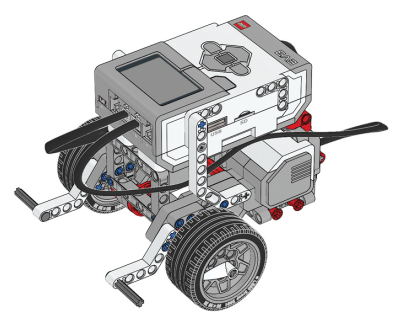
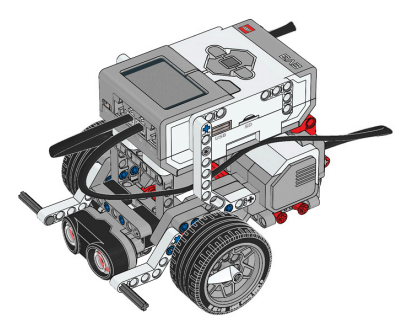
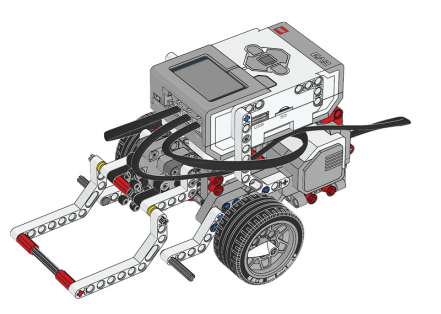
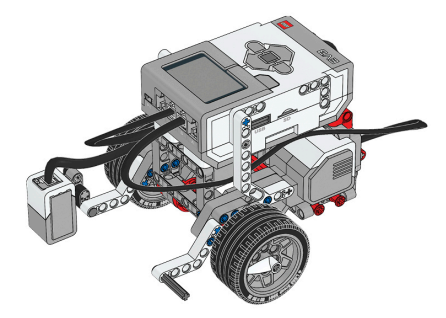
Before you continue, ensure that you have completed the following builds:
Color Sensor (aka Color Sensor Down)
In this lesson, you will program a robot to turn to the right if it sees an object in front of it at the beginning of the program, or move forward otherwise.

Start with a new Project and Program.
.gif "null")
Go to the orange Control palette, and drag an If/Then/Else block into the program.

We want to put in a condition that tells the robot to check if the Ultrasonic Sensor detects an object within 50cm. To do that, we can add an Ultrasonic Sensor “is distance <” block to the “condition” of the If/Then/Else block.

Now we want to modify the threshold so that it is checking if an object is within 50cm. To do that, change the number from 15, to 50.

The If/Then/Else block contains two branches, one on the top, and one on the bottom. If the “condition” that we set is true (meaning that the Ultrasonic Sensor detects an object within 50 cm, then it will run the top branch.

If the robot does detect an object within 50cm, we can have the robot make a 0.5 rotation turn to the right. Add a Move Block to the top branch, set its steering all the way to the right – to 100 – and change its number of Rotations to 0.5. This should produce about a 90-degree turn to the right.

If the robot does not detect an object, we should be clear to move forward. Add a Move block to the bottom line, but change its Rotations to 3.

Finally, add an Exit block at the end of the program.
.gif "null")
Rename your program as “MoveIfClear”.
Download your program, and run it twice: once with an object in front of it, and once without.

When the program reaches the If condition, the block makes a decision based on it. In this case, the robot is checking the Ultrasonic Sensor to see if it is detecting an object less than 50 cm away. If the answer is “Yes, the value of the Ultrasonic Sensor is less than 50 centimeters,” the robot will run the top branch, which means it will turn to the right.

And if the answer is “No, the value is not less than 50 centimeters,” it will run the bottom branch. Here, that means moving straight forward for 3 rotations.

Regardless of which line runs, the program will move to the next block afterward, which exits the program.

What will the robot do if it does NOT sense an object 25cm away?
The robot makes its decision about whether to move forward or turn…
🔟 Operators
All robots have a limited decision-making capacity. They are not able to make human-like choices based on feelings, intuition, or prior knowledge. Their decisions are represented as conditions within the code. These conditions must be formed in a way where the answer is either yes or no, or true or false, otherwise known as Boolean Logic. Boolean Logic uses operators. Operators allow the robot to have a basis for making decisions. Below are just some of the most commonly used operator blocks with EV3:

Try programming the robot to say "Hello" if the Distance Sensor sees an object less than 15cm away, OR if the Color Sensor detects a red object. You will have to use an or operator block.

In this case, the condition reads that IF the Distance Sensor OR the Color Sensor detects an object, play "Hello", ELSE play "Goodbye".
The or operator allows for one or both sensors to be true, meaning one or both of the sensors has to detect an object. The condition is false if neither of the sensors detects an object.

Run this program several times to observe each different outcome:
Run the program with an object 15cm away
Run the program with a red object in front of the robot
Run the program without any object
What happens?
When one or both sensors detect an object, the robot says "Hello". If neither of the sensors detects an object, the robot says "Goodbye". This is because when one or both sensors detect an object, the condition is true. The condition is only false when neither of the sensors detects anything.
Try using the and operator with the same program.

The condition reads that IF the Distance Sensor AND the Color Sensor detect an object, say "Hello". ELSE, say "Goodbye". For the condition to be true, both of the sensors have to detect an object. The condition is false one or none of the sensors detect an object.

Run this program several times to observe each different outcome:
Run the program with an object 15cm away
Run the program with a red object in front of the robot
Run the program without any object
What happens?
The robot only plays "Hello" when both sensors detect an object. When one or neither of the sensors detects an object, the robot plays "Goodbye". This is because the and operator needs to have both sensors detect an object in order for the condition to be true.
🌐 A related virtual activity is available HERE.
Which of the following statements best describes an operator?
True or False: A condition that uses an OR operator can only be true if both sensors detect an object.
🎨 Color Sensor Compare
Program the robot to turn left or right, depending on what color it sees!
Using the or operator, program the robot to turn right (using 100 as the Steering value for .8 rotations) if the Color Sensor sees the color green or brown. Then, turn left (using -100 as the Steering value for .8 rotations) if it sees anything else. Make sure the Color Sensor is attached and facing forward.

📸 Document It: Capture a screenshot (or multiple screenshots) of your completed program and upload or paste it onto the Formative canvas.
⬆️ Upload It: Upload your completed program.
In this section, you will use a Loop to repeat an if/then/else behavior. The resulting program allows the robot to turn when it detects an object.

Start with a new Project.

Add an If/Then/Else block into your project.

Now drag an Ultrasonic Sensor “is distance <” block into the condition of the If/Then/Else block.

Set the condition to make its decision based on whether the Ultrasonic Sensor's value is less than (<) 20 centimeters.

In the top branch, we will add a Move block so that if an is within 20 centimeters, the robot will make a right turn in place (steering set to 100) for 0.5 rotations. This creates a 90-degree robot body turn.

In the bottom branch, we will add a Move block so that if there is not an obstacle within 20 centimeters, the robot will move forward for 3 rotations.

Rename your project as "MazeRunner".

Run your program twice:
Once with nothing in front of it
And once with a wall in front
Make sure that your robot behaves appropriately in each case! The If/Then/Else block uses the Ultrasonic Sensor value to determine whether to move forward or to turn to the side.

Return to your program, and go to the Control palette and add a “forever” loop to the program. Drag the “forever” loop so that it covers the If/Then/Else block and all of its contents.

Download and run the program.
The robot will now make a repeated series of decisions. As the robot runs, place an object in front of it. At the beginning of every loop cycle, it checks the Ultrasonic Sensor, and either moves forward or turns to the side, depending on whether there is an obstacle in the way.

The simple behavior you wrote in the video can be used as a very simple maze solver! Build a maze for the robot, made up of square floor tiles. If you don't have floor tiles, use 30 cm squares. Adjust your Forward movement to go one tile per movement, rather than 3 rotations.

What Happens?
The robot will perform its move-or-turn behavior in each tile, eventually solving many simple maze configurations!
What happens when you place an If/Then/Else block inside a Loop?
What is the error in this program?
🤔 Smarter Decisions
Using a looping decision behavior, program the robot to navigate a simple maze!
Note: This mini-challenge appends to the Maze Runner Challenge (above). Create a simple maze, similar to the one shown above. Next, using loops, program the robot to navigate the maze. Ideally, each section of the maze would equal one rotation of the robot.
When the robot performs a movement, program a sound to represent that movement. For example, each time the robot moves forward, it can say "Hello!" Choose different sounds for each type of movement.

📸 Document It: Capture a screenshot (or multiple screenshots) of your completed program and upload or paste it onto the Formative canvas.
⬆️ Upload It: Upload your completed program.
🍓 Strawberry Sorter
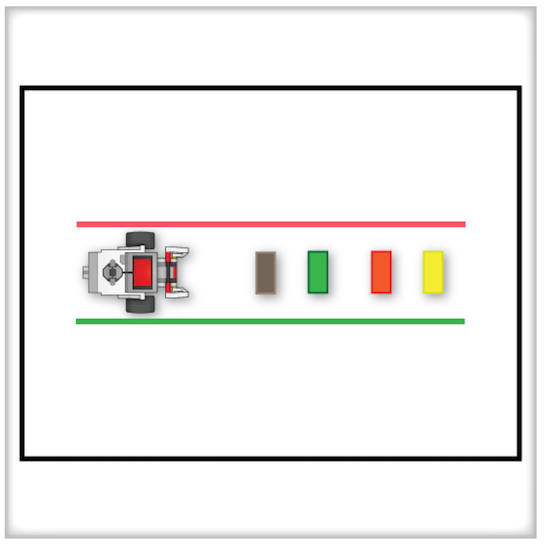
For this challenge, use a looped decision to program your robot to move a number of objects to the left or the right, depending on its color. Good plants (green and brown) should be sorted to the right. And bad plants (any other colors) should be sorted to the left.

Rules and Procedures:
Use four rectangular objects to represent the plants. These can be built with LEGO parts or cut from cardboard boxes.
The objects must be placed in a straight line, with at least 5 centimeters of space between them.
The objects should be a random mix of “good” and “bad” plants and placed in a random order for each run.
Green or brown plants are considered “good”.
Red, black, or yellow plants are considered “bad”.
The robot must correctly sort all plants in a run to complete the Challenge.
Hints:
Use an or operator to compare the "good" plant colors.
Use a Loop to repeat the inspection process.
According to the rules, when should the robot stop inspecting?
🌐 A virtual version of this challenge is available HERE.
📸 Document It: Capture a screenshot (or multiple screenshots) of your completed program and upload or paste it onto the Formative canvas.
⬆️ Upload It: Upload your completed program.
🧠 Retrieval Practice:
Summarize the content of this lesson. What topics, ideas, and vocabulary were introduced?