This course includes resources provided by the following:
LEGO Education
CS-STEM Network from Carnegie Mellon University
EV3-Scratch documentation provided by Raphael Holzer
Joe Olayvar & Evelyn Lindberg in association with the Washington State Library
🌏 Click here to access the LEGO Education website.
📑 Click here to access the EV3-Scratch documentation.
🎓 Click here to access the online EV3 course from CS2N.
📕 Click here to access the LEGO Mindstorms EV3 Programming Basics document in its entirety.
▶️ Click here to access the entire LEGO Mindstorms EV3 YouTube playlist from the Washington State Library.
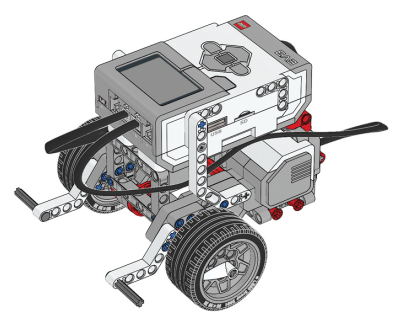
Before you continue, ensure that you have completed the following builds:
What are some of the challenges a self-driving car must overcome?
What will the robot need to detect with the Color Sensor?
In this lesson, you will use the EV3 Color Sensor to detect when a traffic signal turns green.

The robot will already be stopped and looking at the traffic light.
Color Sensor Configuration

The Color Sensor is required to complete sections of this chapter as well for the final challenge.
EV3 Driving Base Color Sensor Down Build instructions: https://drive.google.com/file/d/1fy9zMEIIXNWtcDPaN18k-19jgocdhBBc/view?usp=share_link
Create a new project and program.
.gif "null")
Go to the light blue Sensors palette and add a Color Sensor “wait until color” Block to the program.

This will tell the robot to wait until it sees a certain color.
Select the color the sensor will wait for by clicking on the drop-down menu, and selecting Green.

Go to the Movement palette, and add a “move [forward] for [1] rotations” Block after the Wait.

Drag a “stop [and exit program]” block from the Control palette, and place it at the bottom of the stack.

Rename your program to "WaitGreen".

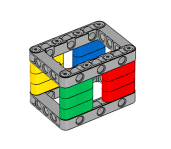
Download your program and place the Color Crate in front of the robot's Color Sensor, with the red panel directly in front of the lens. Run your program. Now, flip the Crate so that the Green panel is facing the Color Sensor.

The EV3 Color Sensor can detect 7 different colors, plus the absence of color, and wait until the robot sees a change in its currently viewed color.

What does the No Color "color" mean in the Set of Colors menu? Change your program so that it waits for "No Color".

Place various objects in front of the Color Sensor, and run the program. What triggers the Wait For No Color Block? Try it!
💡 Did You Know? How the Color Sensor Works
Which of the following is not true about the Color Sensor?
If the color sensor is detecting a blue object, this means that blue light is and red and green light is .
🚂️ Railroad Crossing
Using a Color Sensor, program the robot only moves forward when there are no obstacles!

Place a red obstacle in front of the color sensor. Program the robot to only move forward when the obstacle changes color or moves away.
🌐 A virtual version of this challenge is available HERE.
📸 Document It: Capture a screenshot (or multiple screenshots) of your completed program and upload or paste it onto the Formative canvas.
⬆️ Upload It: Upload your completed program.
In this lesson, you will program the robot to move until the Color Sensor detects a red object in front of it.

Similar to previous "Forward Until" programs, you will accomplish this by turning the robot's motors on, leaving them on while waiting for the Color Sensor to detect Red, then stopping the motors.
Create a new project and program.
Turn the motors on by adding a “start moving” Block.

Go to the light blue Sensors palette and add a Color Sensor “wait until color” Block to the program.

By default, it is set to red. We can leave it this way since we want to mimic stopping at a traffic light
After the robot sees the color red, it should stop its motors. Add a “stop moving” Block to the program.

Drag a “stop [and exit program]” block from the Control palette, and place it at the bottom of the stack.

Rename your program as "ForwardRed".

Download and run your program. The motors turn on, then stay on as the robot Waits for the Color Sensor to see something Red, and then turn off.

Which of the following block combinations tells the robot to drive until the Color Sensor detects red?
🛑 Forward to Stop Line
Using a Color Sensor, program the robot to move forward until it detects a line!

This mini-challenge requires the Color Sensor to be pointed down.
EV3 Driving Base Color Sensor Down Build instructions: https://drive.google.com/file/d/1fy9zMEIIXNWtcDPaN18k-19jgocdhBBc/view?usp=share_link This mini-challenge is a two-part challenge.
Part 1: Place dark-colored tape on a light-colored surface. Start the robot away from the tape, then program the robot to move forward toward to tape, then stop when it detects it. Part 2: Next, place a light-colored tape on a dark surface, then program the robot to do that same behavior.
🌐 A virtual version of this challenge is available HERE.
📸 Part 1: Document It: Capture a screenshot (or multiple screenshots) of your completed program and upload or paste it onto the Formative canvas.
⬆️ Part 1: Upload It: Upload your completed program.
🚦 Traffic Light
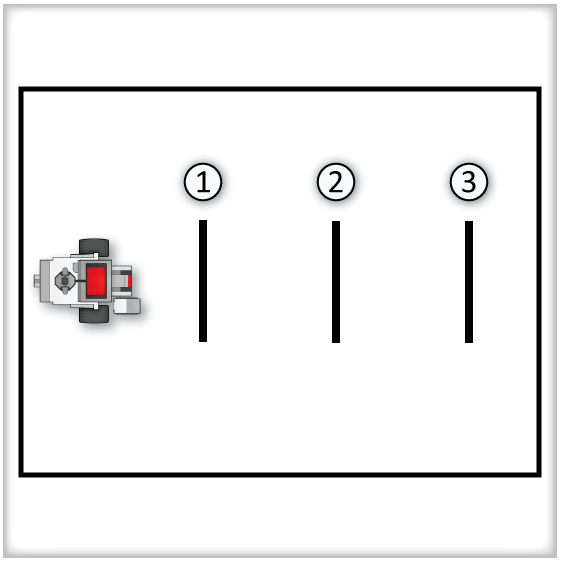
For this challenge, attach the Color Sensor so that it is facing forward. Place three pieces of taped lines on the table to represent intersections. Create an object that represents traffic lights, an object that is either hand-held or placed on the ground. Next, program your robot to navigate through the intersections, stopping at an intersection that has red traffic lights, and going forward when it sees green.

Rules and Procedures:
Traffic signals are represented by holding the colored block with the signal side downward and toward the robot at a 45-degree angle.
You can also use red and green colored sheets of paper, which may be easier to hold at the correct height.
The initial signal color for each intersection is determined by flipping three coins before the run. Heads = Green, Tails = Red.
The robot must STOP if the light is red, and must MOVE stop if the light is green.
After the robot successfully goes through all three intersections, the robot can be stopped by hand.
Hints:
Since you only have access to Wait commands, try to break the robot’s behavior into stages. What is the robot waiting to see at each stage of its movement? What should its motors be doing during those stages?
If the robot is already moving, is there any point in waiting for Green? If the robot is stopped, is there any point in waiting for Red?
If the robot sees a Red light, don’t forget that it needs to wait for the actual Green light before proceeding!
🌐 A virtual version of this challenge is available HERE.
📸 Document It: Capture a screenshot (or multiple screenshots) of your completed program and upload or paste it onto the Formative canvas.
⬆️ Upload It: Upload your completed program.
🧠 Retrieval Practice:
Summarize the content of this lesson. What topics, ideas, and vocabulary were introduced?
📸 Part 2: Document It: Capture a screenshot (or multiple screenshots) of your completed program and upload or paste it onto the Formative canvas.
⬆️ Part 2: Upload It: Upload your completed program.