This course includes resources provided by the following:
LEGO Education
CS-STEM Network from Carnegie Mellon University
EV3-Scratch documentation provided by Raphael Holzer
Joe Olayvar & Evelyn Lindberg in association with the Washington State Library
🌏 Click here to access the LEGO Education website.
📑 Click here to access the EV3-Scratch documentation.
🎓 Click here to access the online EV3 course from CS2N.
📕 Click here to access the LEGO Mindstorms EV3 Programming Basics document in its entirety.
▶️ Click here to access the entire LEGO Mindstorms EV3 YouTube playlist from the Washington State Library.
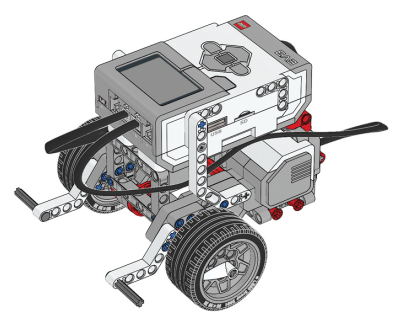
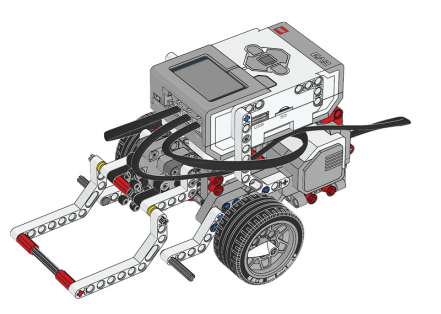
Before you continue, ensure that you have completed the following builds:
Repetitive tasks can be accomplished efficiently by...
In this lesson, you will use a Loop to repeat the same sequence of blocks multiple times.

Ultrasonic Sensor Configuration

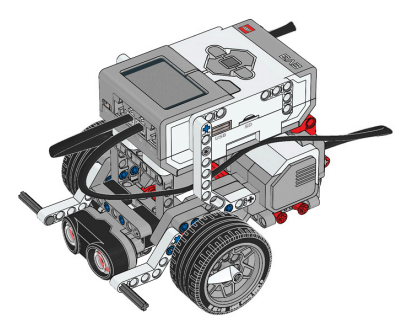
For this chapter, the Ultrasonic Sensor is required to complete sections of this chapter as well for the final challenge.
Ultrasonic Sensor Driving Base build instructions: https://drive.google.com/file/d/1FuwryZIW-l5rsP1bhp29RKxoiavl0WfJ/view?usp=share_link
Start with a new project and program.
.gif "null")
Start by adding two “move [forward] for [1] [rotations]” blocks to the program.We will write this program in two phases: First, we will write a behavior that makes the robot move forward then backward.📷Forward - Backward Then, we will add a Loop to make that sequence run over and over again.📷Looping Behavior

Leave the first one set to move forward for one rotation, but change the second one to move backward, by selecting “backward” in the drop-down menu.

Rename this program as "MoveLoop", even though it's not looped yet.

Download and run your program, and you can see the robot move forward, then backward as expected.

This works because the program runs the first block, and then moves to the second block and runs it. Then reaches the end of the program

The Loop you are about to add to your program will go around the two blocks you have now and will let them run. Instead of hitting the end of the program after the second Move, the program will hit the loop instead. The loop will take the program's "flow" and send it back to the beginning of the loop where it will pick up and begin running again (through the blocks inside the loop).

Go to the orange Control palette, and grab a “forever” block. Drag it into your program, and add let it wrap around the move blocks.

Now download the program and run it.

What does the Loop do?
How do you add a loop to a program?
⏹ Square Lap 1
Program a looped behavior for the robot to travel around a box, forever!
Using any box, program the robot to go around it forever. Using a loop is highly recommended.

📸 Document It: Capture a screenshot (or multiple screenshots) of your completed program and upload or paste it onto the Formative canvas.
⬆️ Upload It: Upload your completed program.
In this lesson, instead of looping forever, we will use a “count” loop to make the Loop repeat only a certain number of times.

First, we want to start from where we left off with the “MoveLoop” program. We don’t want to overwrite that program or change it, so we need to duplicate it to make another copy.

Start by going to the Home menu, and then clicking on the “SHOW ALL” link.

From here, you can click “Edit Projects”.

Click on the MoveLoop project to put a check on it.

Now, we need to click on “DUPLICATE” at the bottom of the window. This will create a duplicate at the top of the list.

Click on “Edit Projects” again to stop editing the projects.

Now click on the newly created Project to start Editing it.

This program uses a Loop to send Program Flow back to an earlier point in the program, every time it reaches the end of the Loop. This makes the program repeat forever, as the Flow is always sent back.

Instead of always sending the Flow back, however, the Loop can be set to send it back conditionally – only send Flow back under certain conditions, otherwise, let the Flow leave the loop. You can think of this as the right-hand side of the Loop Block behaving as a gatekeeper. When the Flow arrives, it will ask a question, and, depending on the answer to that question, will either send the Flow back or let it pass through.

Instead of using the “forever” loop, we will instead use the “repeat” loop. Drag the forever loop outside of the stack.

Now drag the “repeat” block into your program.

Move the “move” blocks out of the forever loop by dragging the top-most move block, and placing it inside the “repeat” loop.

This tells the robot to repeat the blocks inside (the move blocks) 10 times.
Now that we aren’t using it anymore, we can remove the “forever” loop.

Now, change the number Count to 5 so that the loop repeats 5 times.

Rename your Project as "MoveLoopCount".

Download and run your program. As before, your robot will move forward and backward repeatedly as the program flow is sent back through the same blocks, but after 5 repetitions of the forward-back cycle, the robot will stop.

In Count Mode, the Loop will only send Flow back conditionally. The first four times the program reaches the end of the Loop, it is sent back. On the fifth time, however, the Loop lets the flow through, where it reaches the end of the program.

A Repeat Loop block will send the Program Flow back…
What does it mean for a Loop to be "Conditional"?
What is the "condition" in this Loop based on?
⏹ Square Lap 2
Program a looped behavior for the robot to travel around a box exactly 1 time!
Same as the previous challenge, except this time program the robot to go around the box exactly 1 time.

📸 Document It: Capture a screenshot (or multiple screenshots) of your completed program and upload or paste it onto the Formative canvas.
⬆️ Upload It: Upload your completed program.
In this lesson, you will set the Loop to use a Sensor to decide whether to send Program Flow back or let it pass.

Start by duplicating your "MoveLoopCount" project from earlier.

Open up the new project by clicking on it.

We will be replacing the “repeat” loop with “repeat until” so that we can control the loop with a sensor. First, let’s remove the “repeat” loop.

Insert a “repeat until” loop into the program. This has a space to put a “condition” inside that will determine when to exit the loop.

Drag the move blocks from the “repeat” block into the “repeat until” block.

Get rid of the Repeat block by dragging it over to the menu on the left.

Add an Ultrasonic Sensor “is distance” block into the placeholder in the “repeat until” block.

You can leave the comparison as less than (<). Set the Threshold Value to 30.

Rename your program as “MoveLoopUltrasonic”.

Run your program, then, while it’s running, place your hand in front of the robot, less than 30 centimeters in front of the Ultrasonic Sensor.
The robot stops... eventually!

The “repeat until” block will first look at the condition; if it’s false, it will go into the loop and start running the stuff inside until it is true. The Robot won't stop while moving forward, or while moving backward…

However, it will stop at the end of the forward-backward cycle.

Why? Because of Program Flow. When the program is running the Forward block, the Forward block has control of the program, not the Loop. That, in turn, means it is not checking the Sensor.

The same is true when the Backward movement has control. The only time the Sensor is checked is when the Program Flow is at the beginning of the Loop, and – in that instant – uses the Sensor to determine whether to send the Flow back for another round or let it through.
When does a Sensor Loop check the sensor?
When the Loop is set to Ultrasonic Sensor as shown below, what "condition" will cause it to pass Program Flow through (instead of sending it back)?
⏹ Square Lap 3
Program a looped behavior for the robot to go around a box until it reaches an obstacle!
Same as the previous two challenges, but now there is an object placed on one side of the box. Program the robot to go around the box until it spots the object. If there is no object, then the robot will go around the box forever.

📸 Document It: Capture a screenshot (or multiple screenshots) of your completed program and upload or paste it onto the Formative canvas.
⬆️ Upload It: Upload your completed program.
🪴 Container Handling
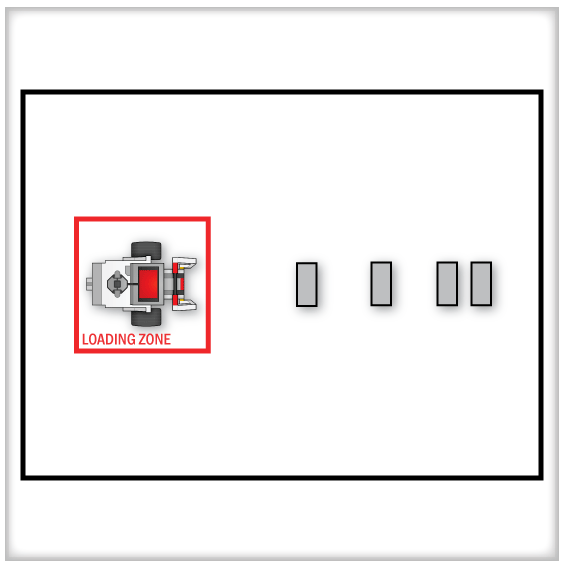
For this challenge, use a Loop to program your robot to move a number of objects into a zone. The objects are placed at irregular intervals, so you will have to use a sensor to detect each one. The robot should then use its arm to turn around with the object back into the zone – marked with a red outline – and release it there.

Rules and Procedures:
Use four rectangular objects to represent the four containers. These can be built with LEGO parts or cut from cardboard boxes.
The four objects must be placed in a straight line at the start of each run, with a flat side facing the robot, but their distance from each other should be varied randomly.
The drop-off area for the containers should be marked with red electrical tape. If red is not available, any color may be substituted as long as it is different from the color of the table surface.
A container with no parts hanging outside the loading area may be removed by hand to make room for the next container.
The robot must return all four containers reliably to the loading area, regardless of where they were located along the initial line.
Hints:
Use a Loop to repeat similar portions of the behavior. You should not have to write all four runs separately!
If the robot needs to perform any actions prior to the loop, simply place them before the Loop in the program.
If the robot needs to perform any actions after the loop, simply place them after the Loop in the program.
Use Sensors to help the robot locate both the containers and the loading zone, as the exact distances required will be different each time the robot runs!
🌐 A virtual version of this challenge is available HERE.
📸 Document It: Capture a screenshot (or multiple screenshots) of your completed program and upload or paste it onto the Formative canvas.
⬆️ Upload It: Upload your completed program.
🧠 Retrieval Practice:
Summarize the content of this lesson. What topics, ideas, and vocabulary were introduced?