This course includes resources provided by the following:
LEGO Education
CS-STEM Network from Carnegie Mellon University
EV3-Scratch documentation provided by Raphael Holzer
Joe Olayvar & Evelyn Lindberg in association with the Washington State Library
🌏 Click here to access the LEGO Education website.
📑 Click here to access the EV3-Scratch documentation.
🎓 Click here to access the online EV3 course from CS2N.
📕 Click here to access the LEGO Mindstorms EV3 Programming Basics document in its entirety.
▶️ Click here to access the entire LEGO Mindstorms EV3 YouTube playlist from the Washington State Library.
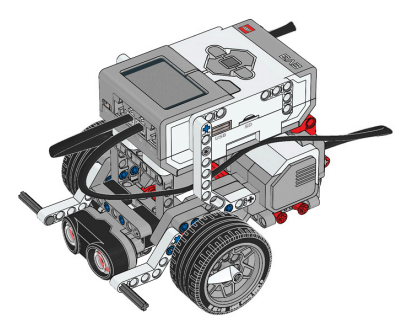
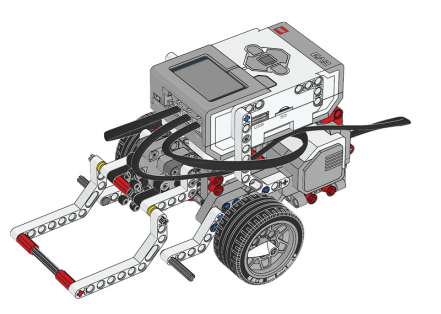
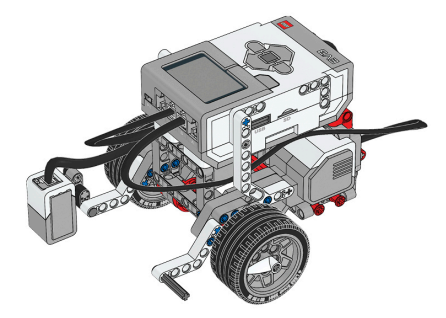
Before you continue, ensure that you have completed the following builds:
Color Sensor (aka Color Sensor Down)
What environmental feature will the robot use to help it navigate in this challenge?
What programming concept will be used to create this behavior?
In this lesson, you will learn what line tracking really is, and write a program to create a line-tracking robot. The secret to line following is that the robot isn't actually following the line at all. It's just looking for different colors, the way it's always done.

The program is based on a simple rule: always drive toward the edge of the line, where the white floor and the black line meet. Suppose we pick the left edge. If the robot is over the line, then the left edge is to the robot's left. So when the robot sees black, it should go left, but also a little forward.

If it does this consistently every time it sees black, it will eventually drive off the line. When this happens, it will be seeing white, and the edge of the line will now be to its right. Therefore, if the robot sees white, it should go forward and to the right.

Eventually, it will get back to the line, and start seeing black again. Repeat this behavior enough times, and the robot will bounce back and forth between the black and white areas, but in doing so, will slowly bobble its way down the line. This approach works even if the light sensor is mounted slightly away from the body of the robot.
Let's program it.
Start a new Project.

Start with an If/Then/Else block.

For the condition of the If/Then/Else block, use a Color Sensor “is color” block set to the color Black.

If the color sensor does see the color Black, then the robot should go forward-left (steering set to -20).

If the color sensor does not see Black, then the robot should go forward-right (steering set to 20).

Add a “forever” Loop to the program, cover all of the blocks so far inside of it.

Rename this project "LineTrack".

The robot will follow the line. In very much the same way that repeated decisions allowed your robot to stop or go for obstacles, repeated decisions will also let your robot go left or right to track the edge of a line.

If the robot is seeing black, what can it tell about its position?
Suppose the robot is tracking the left edge of the line, and sees black. Which way should it move?
➰ Track Line for Rotation
Using the line tracking behavior, program the robot to track line, up to 4 wheel rotations, then stop!
With the line tracking behavior, program the robot to line track, but only for four wheel rotations’ length. This means the robot should keep track of its wheel rotation when moving along a line. Once the robot reaches 4 wheel rotations, it should stop.

📸 Document It: Capture a screenshot (or multiple screenshots) of your completed program and upload or paste it onto the Formative canvas.
⬆️ Upload It: Upload your completed program.
〰️ Line Tracking
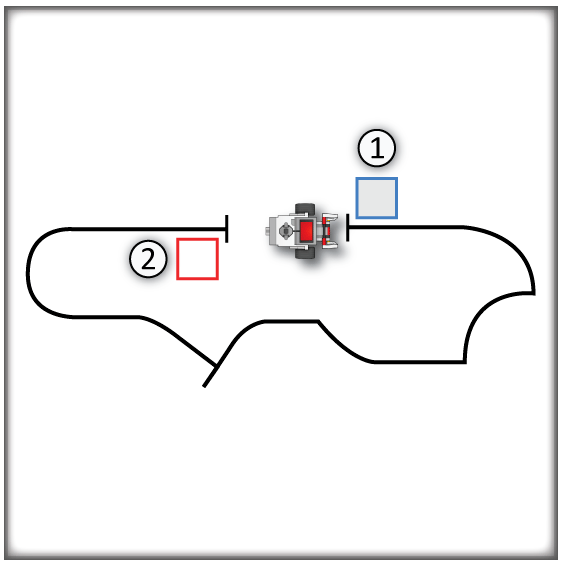
For this challenge, program the EV3 robot to grab the object from the pickup zone, follow the line track, and drop the crate off in the end zone.

Rules and Procedures:
Build the course shown above using black electrical tape on a light surface.
The robot must pick up the box using its arm, then follow the line to the drop-off point, and release the box there.
Program your robot to deliver the box in the shortest time possible!
Hints:
You can use the Loop Mode setting to adjust when a Line Track behavior ends. The program will then run whatever comes next, even another Line Track!
Use multiple line tracks with different “sharpness” one after another to handle parts of the board.
Adjust the “sharpness” of the robot’s motions using the Steering slider on the Move Steering Block.
You may find it advantageous to track the right side of the line in some places. Which way should the robot go when it sees Black get to the right edge of the line? Which way should it go to get back after it drives off?
🌐 A virtual version of this challenge is available HERE.
📸 Document It: Capture a screenshot (or multiple screenshots) of your completed program and upload or paste it onto the Formative canvas.
⬆️ Upload It: Upload your completed program.
🧠 Retrieval Practice:
Summarize the content of this lesson. What topics, ideas, and vocabulary were introduced?