This course includes resources provided by the following:
LEGO Education
CS-STEM Network from Carnegie Mellon University
EV3-Scratch documentation provided by Raphael Holzer
Joe Olayvar & Evelyn Lindberg in association with the Washington State Library
🌏 Click here to access the LEGO Education website.
📑 Click here to access the EV3-Scratch documentation.
🎓 Click here to access the online EV3 course from CS2N.
📕 Click here to access the LEGO Mindstorms EV3 Programming Basics document in its entirety.
▶️ Click here to access the entire LEGO Mindstorms EV3 YouTube playlist from the Washington State Library.
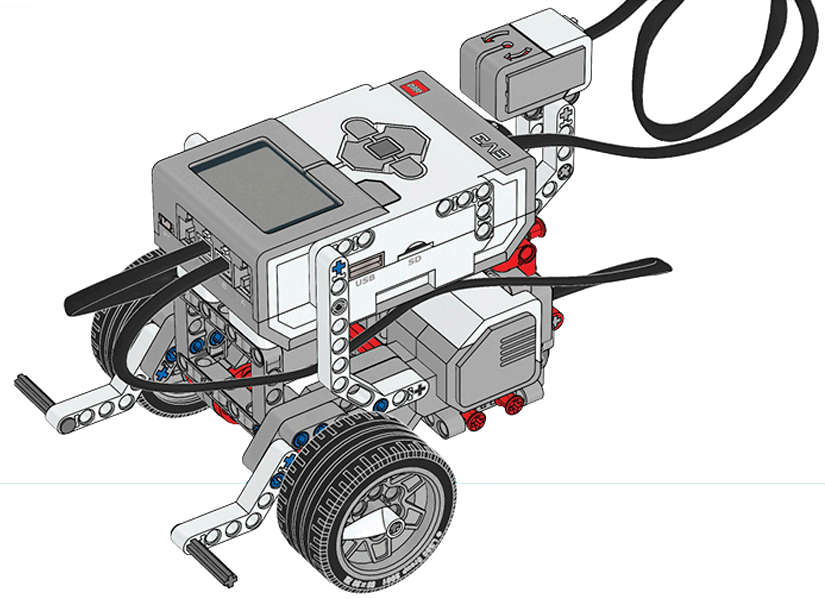
Before you continue, ensure that you have completed the following builds:
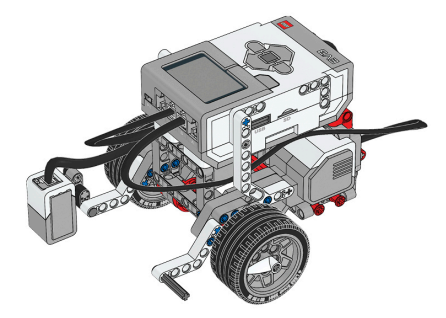
Color Sensor (aka Color Sensor Down)
What is a Flowchart?
Why are Flowcharts important?
What method does this video recommend for building a solution to a problem?
What main topic does this video address?
What does a Design Specification do?
Which of the following can help your team finish its task on time? Select all that apply.
What main topic does this video address?
Which of the following is not an important element in a good Engineering Process?
For this challenge, use concepts you have learned so far to create a program for the robot that will enter a 4-room building. The robot must perform 4 unique actions for 4 unique rooms that will be randomized to simulate hazardous areas where you can never know what will be encountered. This challenge is divided up into 2 phases. Phase 1 includes writing 4 separate programs, one for each room. Phase 2 will combine the four projects in one program.

🌐 A virtual version of this challenge is available HERE.
Good pseudocoding practice involves the process of decomposing larger tasks into smaller steps. Remember, the best way to plan a program is iterative! Practice pseudocoding at a deeper level by writing a plan to solve this maze by using the Ultrasonic Sensor. Let’s start by decomposing this task into steps. Using this chart, we can start with steps that are conceptual and simple and then work our way to adding more and more detail until we just have code in the last column.

The robot only needs a few behaviors to get through this maze. Keep breaking down each step with more details in the next column. By the last column, the steps should be detailed enough to be translated into code. You will know when you are done decomposing and iterating your pseudocode when it is so simple that a robot can do it!
Fill out the chart with steps for the robot to solve the maze using its Ultrasonic Sensor. Start with more conceptual steps, written in just English, and then add more and more detail in each column until you have just coding language.

Now it’s your turn!
Complete the activity on the Formative canvas.
🏅PRO TIP:️ Remember that the canvas provides a variety of tools and media options. In addition to drawing, shapes, and text, you can add screenshots, photos, and other media to your pseudocode chart.
You may also print a copy of the Pseudocode Table, complete this activity on paper, and upload a picture of your page to the canvas.
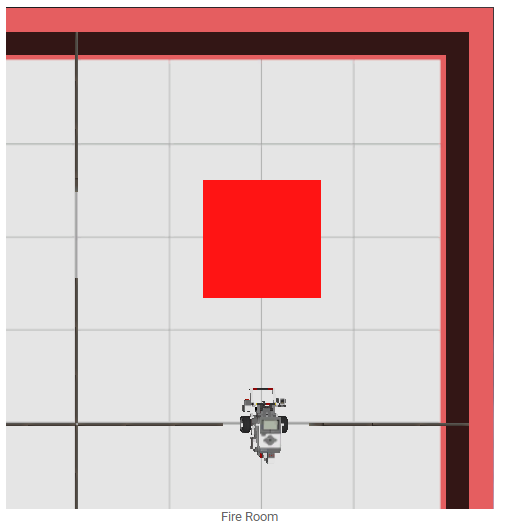
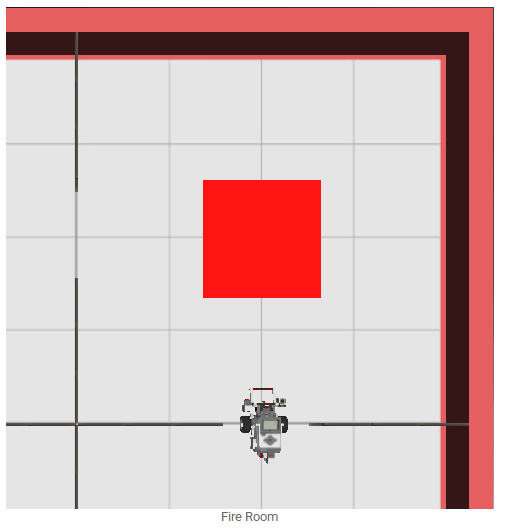
The task of the Fire Room is to go to the red square, turn around 180 degrees, and back up over the "fire" (red square) area (BACKWARDS) with the (pretend) rear-mounted "fire extinguisher".
The "fire" area can be a sizeable square of red electrical tape or bright red paper that can detach from the table.
In order to break the Challenge rooms into more manageable pieces, you will plan out the actions your robot will take before writing a program. This pseudocode can be as simple as the actions in the proper order or as complex as identifying the proper robot commands to perform the actions.

Now it’s your turn!
Complete the activity on the Formative canvas.
🏅PRO TIP:️ Remember that the canvas provides a variety of tools and media options. In addition to drawing, shapes, and text, you can add screenshots, photos, and other media to your pseudocode chart.
You may also print a copy of the Pseudocode Table, complete this activity on paper, and upload a picture of your page to the canvas.
🔥 Fire Room
With your pseudocode in hand, write a program to solve the room.
📸 Document It: Capture a screenshot (or multiple screenshots) of your completed program and upload or paste it onto the Formative canvas.
⬆️ Upload It: Upload your completed program.
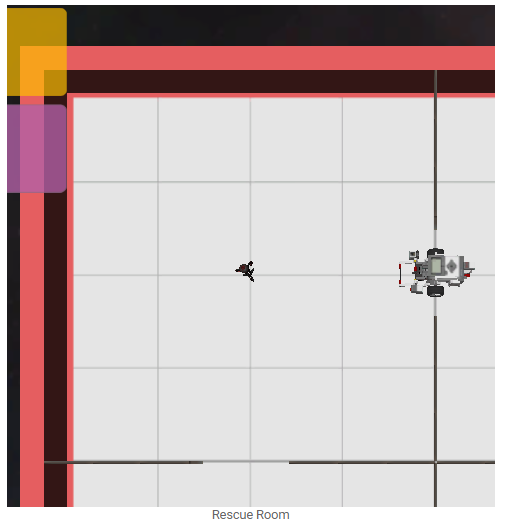
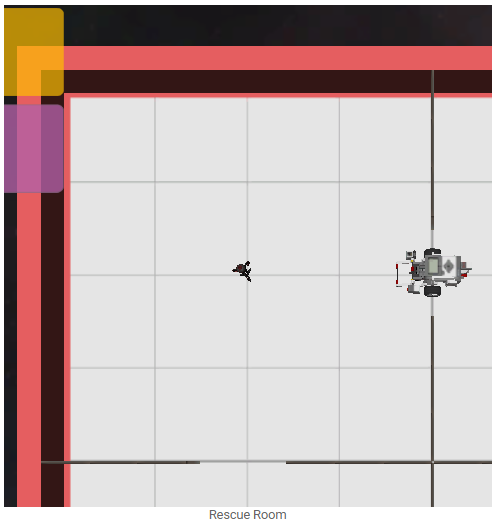
The Survivor can be any object that can be picked up by the robot's claw. Some commonly used items are PVC pipes, toilet paper tubes, or an object made of LEGOs. The object must be large enough for the ultrasonic distance sensor to detect.
In order to break the Challenge rooms into more manageable pieces, you will plan out the actions your robot will take before writing a program. This pseudocode can be as simple as the actions in the proper order or as complex as identifying the proper robot commands to perform the actions.
Now it’s your turn!
Complete the activity on the Formative canvas.
🏅PRO TIP:️ Remember that the canvas provides a variety of tools and media options. In addition to drawing, shapes, and text, you can add screenshots, photos, and other media to your pseudocode chart.
You may also print a copy of the Pseudocode Table, complete this activity on paper, and upload a picture of your page to the canvas.
🆘 Rescue Room
With your pseudocode in hand, write a program to solve the room.
📸 Document It: Capture a screenshot (or multiple screenshots) of your completed program and upload or paste it onto the Formative canvas.
⬆️ Upload It: Upload your completed program.
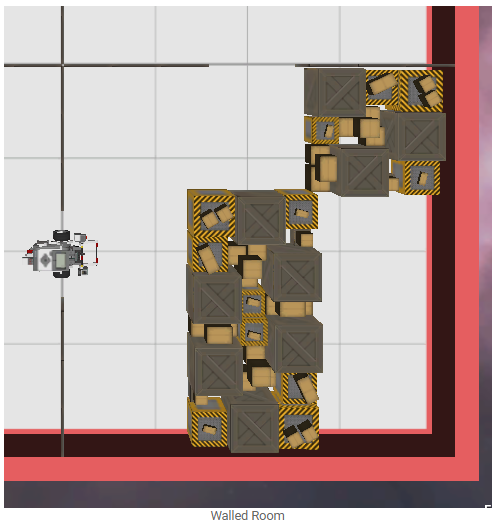
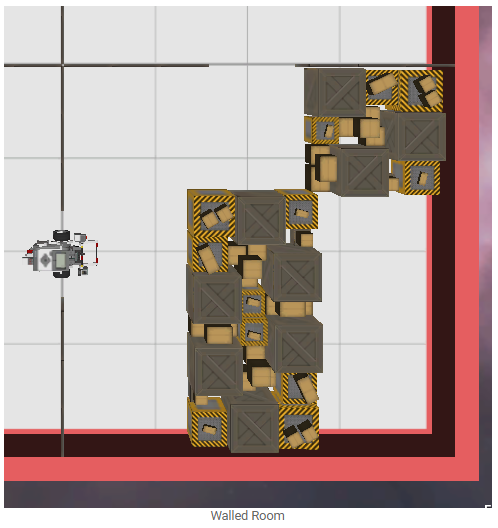
The obstacle can be any solid object that blocks the robot's travel. If solid objects are not available the obstacle can be a piece of tape or colored paper. The robot must be able to navigate around the obstacle so make sure there is enough space when setting up the obstacle.
In order to break the Challenge rooms into more manageable pieces, you will plan out the actions your robot will take before writing a program. This pseudocode can be as simple as the actions in the proper order or as complex as identifying the proper robot commands to perform the actions.
Now it’s your turn!
Complete the activity on the Formative canvas.
🏅PRO TIP:️ Remember that the canvas provides a variety of tools and media options. In addition to drawing, shapes, and text, you can add screenshots, photos, and other media to your pseudocode chart.
You may also print a copy of the Pseudocode Table, complete this activity on paper, and upload a picture of your page to the canvas.
🧱 Walled Room
With your pseudocode in hand, write a program to solve the room.
📸 Document It: Capture a screenshot (or multiple screenshots) of your completed program and upload or paste it onto the Formative canvas.
⬆️ Upload It: Upload your completed program.
In order to break the Challenge rooms into more manageable pieces, you will plan out the actions your robot will take before writing a program. This pseudocode can be as simple as the actions in the proper order or as complex as identifying the proper robot commands to perform the actions.
Now it’s your turn!
Complete the activity on the Formative canvas.
🏅PRO TIP:️ Remember that the canvas provides a variety of tools and media options. In addition to drawing, shapes, and text, you can add screenshots, photos, and other media to your pseudocode chart.
You may also print a copy of the Pseudocode Table, complete this activity on paper, and upload a picture of your page to the canvas.
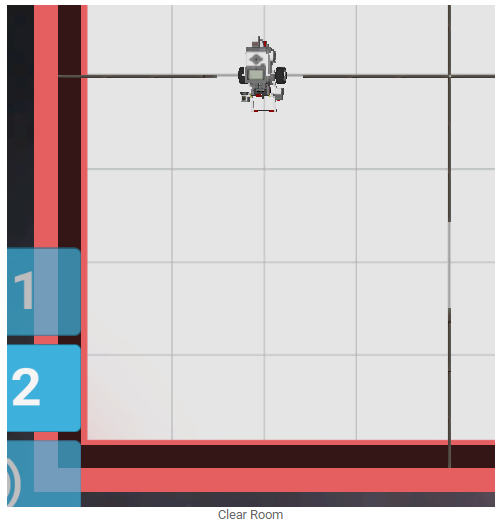
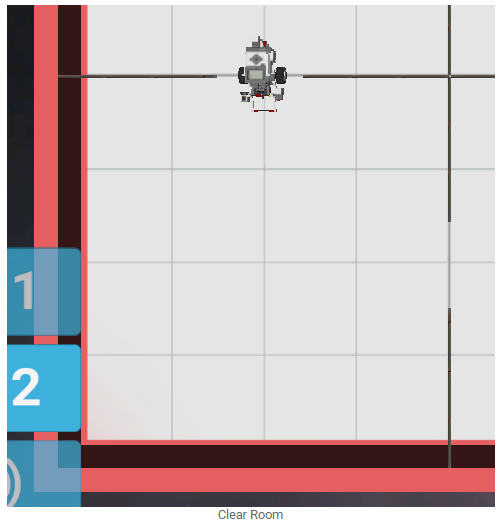
✅ Clear Room
With your pseudocode in hand, write a program to solve the room.
📸 Document It: Capture a screenshot (or multiple screenshots) of your completed program and upload or paste it onto the Formative canvas.
⬆️ Upload It: Upload your completed program.
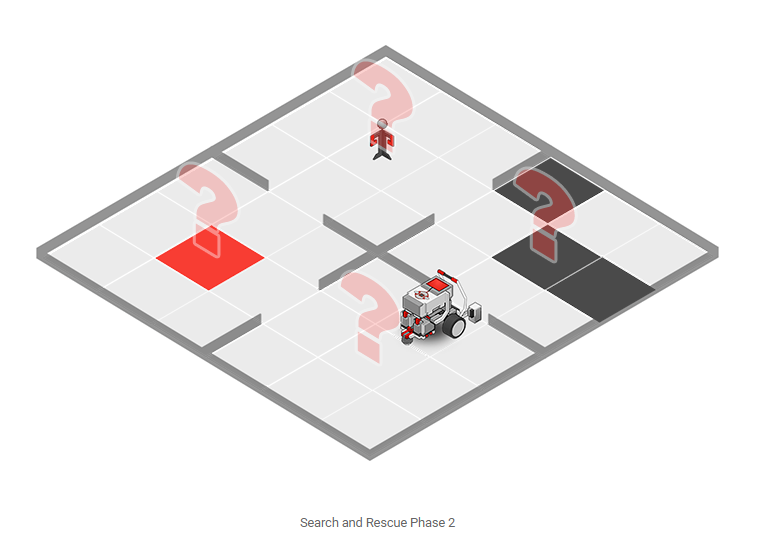
Combine your robot’s capabilities from Phase 1, and build a robot that can distinguish and complete all 4 rooms in one run.
Write 1 program that will (have your robot) travel all 4 rooms.
The location of the rooms will be randomized each run.
The robot can start at any doorway, oriented to go either clockwise or vice versa.
The robot cannot travel through any of the marked walls at any time during its run.
The operator may not choose between different programs based on the configuration - the robot must always run the same program.
Start by creating pseudocode to plan the actions and decisions your robot will need to make to solve the Search and Rescue Challenge.
Now it’s your turn!
Complete the activity on the Formative canvas.
🏅PRO TIP:️ Remember that the canvas provides a variety of tools and media options. In addition to drawing, shapes, and text, you can add screenshots, photos, and other media to your pseudocode chart.
You may also print a copy of the Pseudocode Table, complete this activity on paper, and upload a picture of your page to the canvas.
⛑️️ ️Search and Rescue
With your pseudocode in hand, write a program to solve the room.
📸 Document It: Capture a screenshot (or multiple screenshots) of your completed program and upload or paste it onto the Formative canvas.
⬆️ Upload It: Upload your completed program.