Which circled item(s) below controls the brightness of the screen of your Chromebook?
Which circled item(s) below controls the brightness of the screen of your Chromebook?
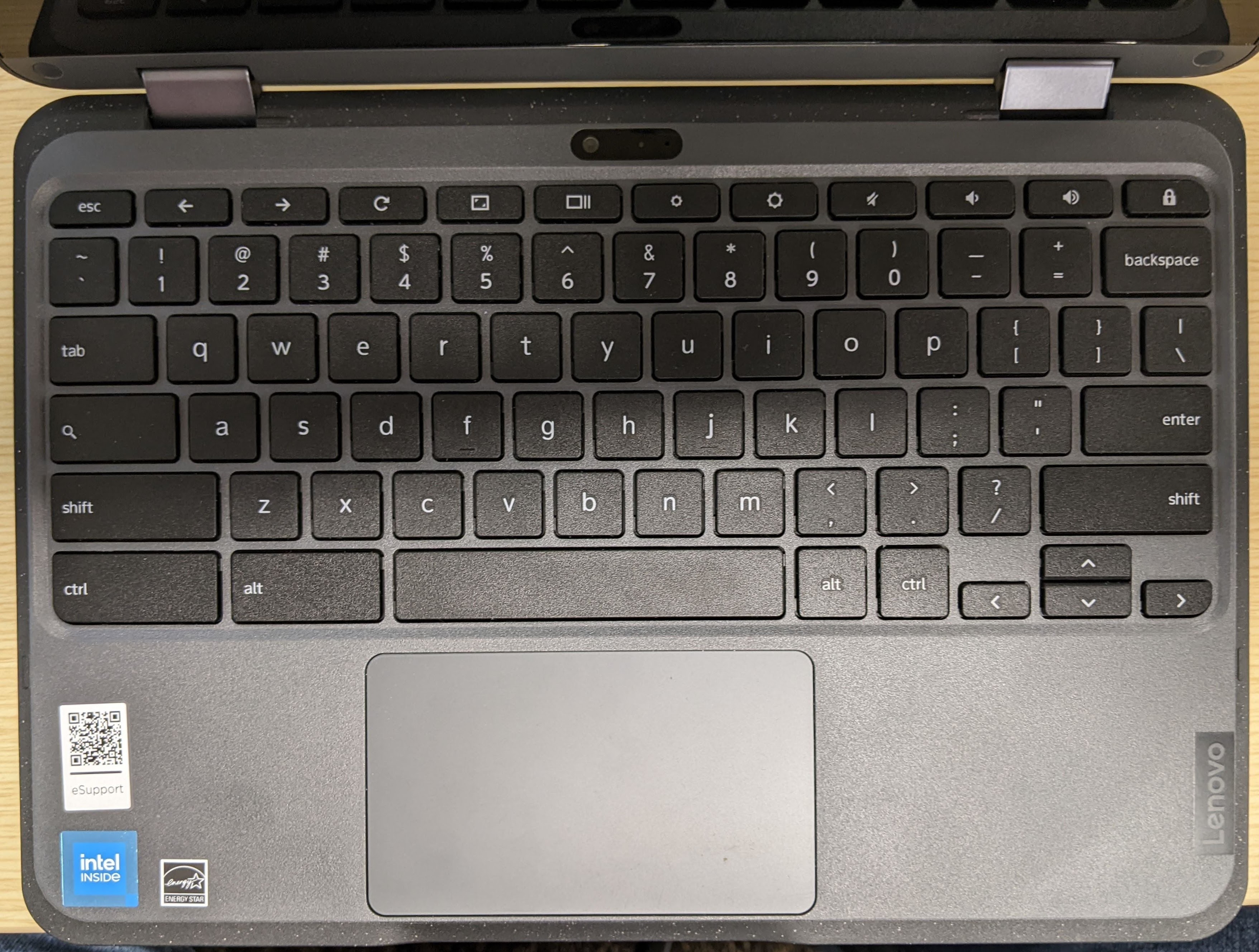
This is an assessment to find out if students know what the different parts of a Lenovo 500e Chromebook are.
TEACHERS: This formative will give students the chance to review what
Which circled item(s) below controls the brightness of the screen of your Chromebook?
Which circled item(s) below controls the sound volume of your Chromebook?
Pressing which circled item below will mute () your Chromebook?
Pressing which circled item below will reload (refresh) a web page?
What does the item inside of the orange circle do? (you can click on the image to make it larger)
Which item(s) circled in the image below can you use to charge your Chromebook?
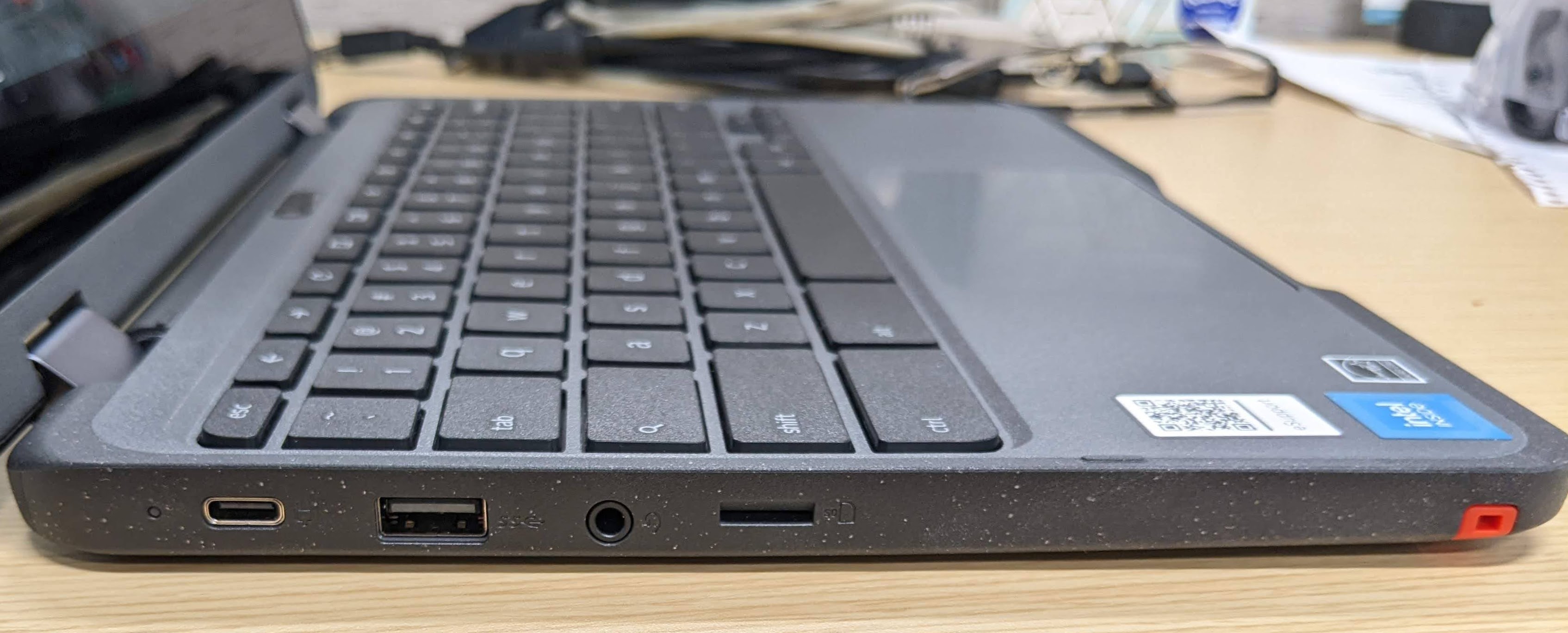
Which item(s) circled in the image below can you plug headphones into to get sound?
Which item(s) circled in the image below can be used to access something stored on another device?
Which item(s) circled in the image below can be used to access a file stored on another device?
Which item(s) circled in the image below can be used to write on your Chromebook screen?
Which item(s) circled in the image below can be used to turn the Chromebook on or off?
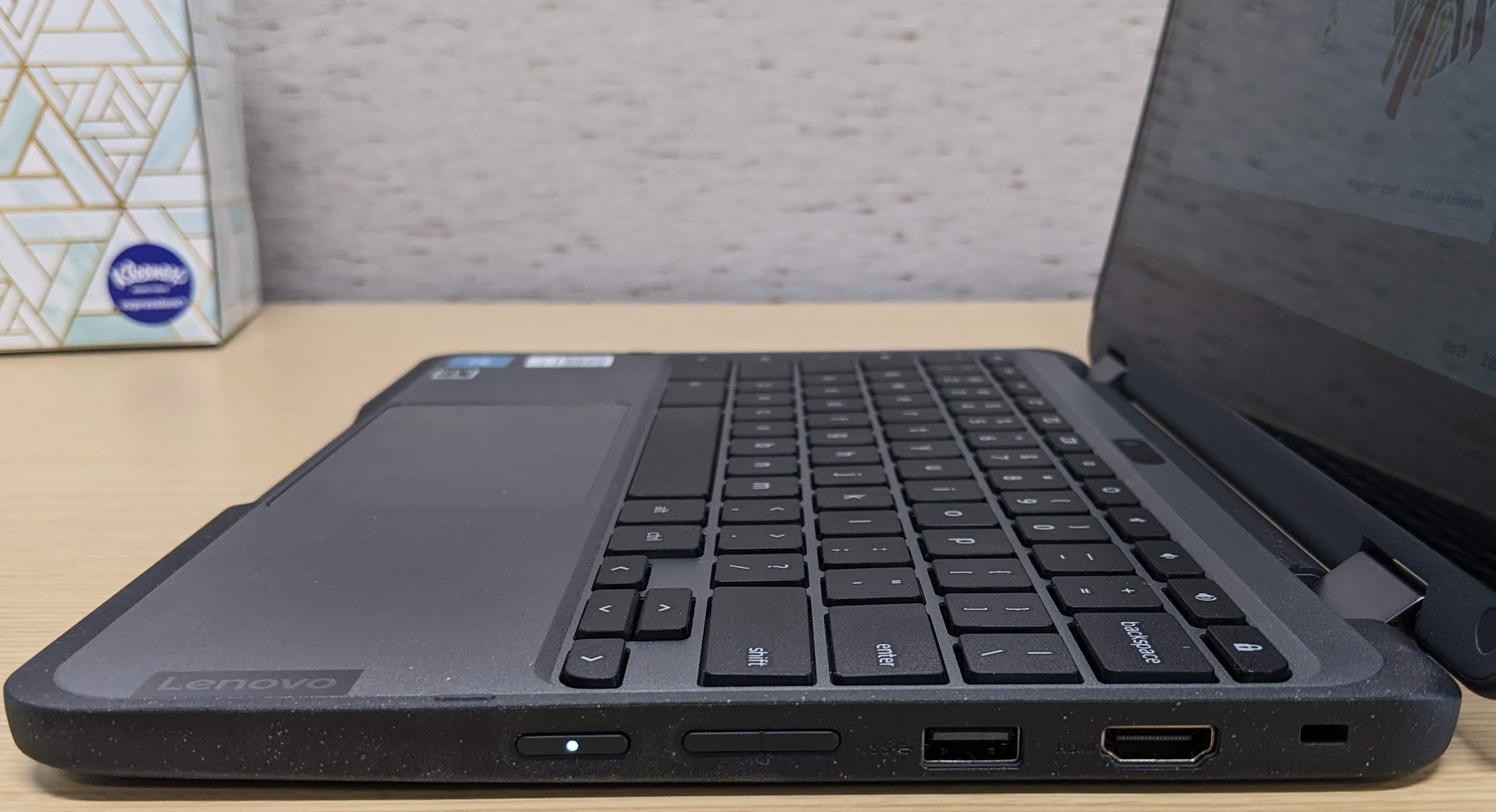
Which item(s) circled in the image below can be used to connect an external monitor?
Open the whiteboard to get a closer look at the picture and then answer this question. What do these two buttons on the side of a Chromebook allow you to do.
Which item(s) in the image below can take your picture?
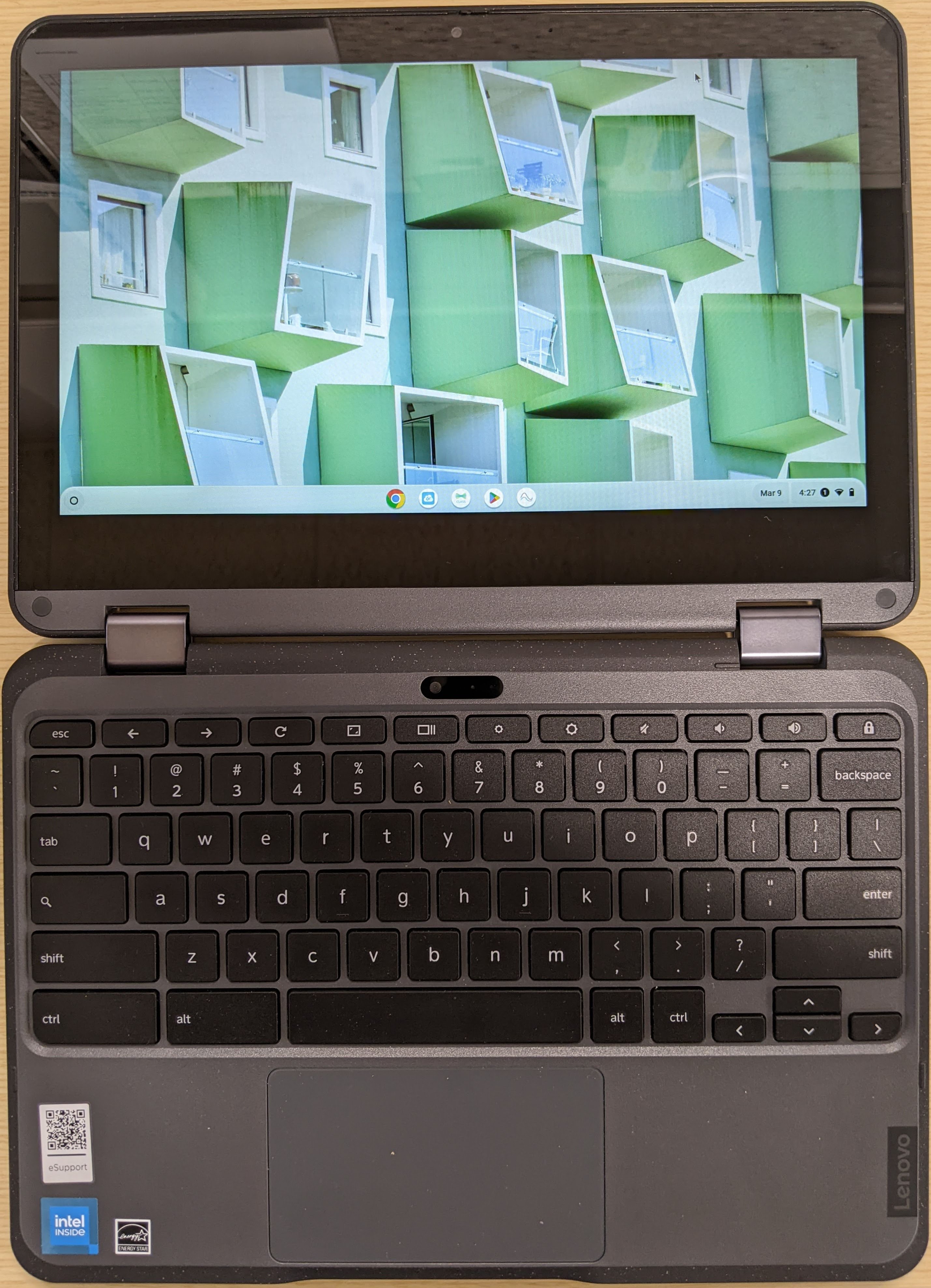
Which item(s) in the picture below is the touchpad?
Which item(s) in the picture below is the monitor (screen)?
On your Chromebook, where are the speakers (the things which produce sound)?