Unit 2 - Moving Your Robot

Last updated almost 2 years ago
28 questions
These lessons introduce us to vr.vex.com where we will learn the basics of programming virtual VEX robots. The site codeV5.vex.com is where we will code the physical VEX robots. We will go through this in class together as a whole group, primarily mirroring my actions on your own device and taking screenshots at certain steps in the procedures. We closely follow the text and directions, so if you are unable to complete it with us, you may do it on your own or see me during Advisement. This first unit is very short, however, since this is the first time we have done this as a class, it will probably take a full class period.
Required
1

Primarily, this unit is teaching you how to use the Drivetrain commands to move the robot forward or backwards and turn the robot left or right.

Required
1

For this assignment we will load up the "Grid Map" playground.

A programming language is a set of rules in which symbols represent actions. Programming languages follow step-by-step instructions that a computer executes in order for a project to run. VEXcode VR is the programming language for a VR Robot.

Behaviors are the actions performed or to be performed by a robot. Moving forward, stopping, turning, looking for an obstacle — these are all behaviors. Behaviors are defined by the programming language.

To change the behaviors of a VR Robot, you can change the blocks in a project. These programming blocks are also called commands.
Required
1

A programming language is a spoken language used to communicate with the VR Robot.

Required
1

What is a behavior?

Required
1

A user can change the behavior of a robot by changing the commands.

Do this:
  • Launch VEXcode VR at vr.vex.com.
  • Once you launch VEXcode VR, a new project will automatically start.
  • To name your project, select the project name box.
  • Enter the new project name YourLastName_Unit2, and select “Save."
  • Drag the [Drive for] block into the workspace and place under the [When started] block.

  • Select the “Open Playground” button to launch the Castle Crasher Playground if it is not already open.
  • Check to make sure that the Castle Crasher Playground is open.

  • If a different Playground opens, change to the Castle Crasher Playground. To change Playgrounds, select the Select Playground button.
  • Select Castle Crasher in the Select Playground menu.
  • Select the “Start” button to test the project.
  • The VR Robot will drive forward for 200mm on the Castle Crasher Playground. Note that the VR Robot did not touch the center castle. The parameters in the [Drive for] block need to be adjusted so the VR Robot can drive further.
  • Select the “Reset” button to reset the Playground and move the VR Robot back to the starting position.

Required
1

Take a screenshot of your work so far. Your project should be correctly named, the code and the playground window should be visible, and the date and time should be in the bottom right of the screenshot. Paste the screenshot into the "Show Your Work" box.

Do This:

  • Set the distance the VR Robot will move by entering the value 800 in the [Drive for] block.
  • Start the project.
  • The VR Robot will collide with the center castle and knock parts of it over.
  • Select the “Reset” button to reset the Playground.
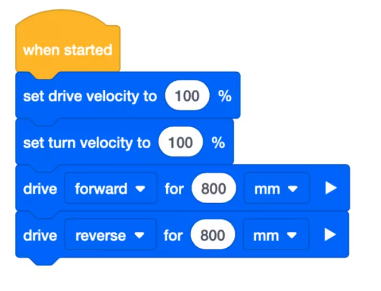
We want the VR Robot to return to the starting position automatically. We will use an additional [Drive for] block and change the parameters to make it drive in reverse to return to the starting position.
  • Add a second [Drive for] block to the VEXcode VR project, and change the direction from “forward” to “reverse.”

  • Make sure the distance value is the same as the first [Drive for] block, 800 millimeters (mm), in order for it to return to the starting position.
  • Select the “Start” button and run the project.
  • The VR Robot will move forward and backward for 800 millimeters (mm), returning to the starting position.
Required
1

Take a screenshot of your project so far. It should be correctly titled, and both the project code and playground window should be visible, along with the date and time. Basically, this is a picture of your code, with the blocks knocked down, and the robot back at its original position.

For Your Information:
  • The [Drive for] block can accept decimals, integers, or numeric blocks. The units can also be changed from millimeters (mm) to inches.
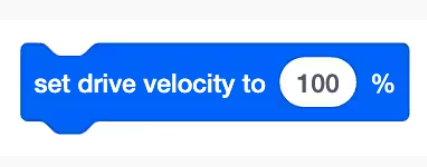
  • To make a VR Robot drive forward and reverse at different speeds, the drive velocity can be increased or decreased using the [Set drive velocity] block. The [Set drive velocity] block accepts a range from 0% - 100%. The default velocity is 50%. Changing velocity will apply to any subsequent Drivetrain commands.

Required
1

Which of the following is the best description of the [Drive for] block?

Required
1

How can you make the VR Robot move in reverse on the [Drive for] block?

Required
1

Which block is used to change the speed of the drivetrain?

Required
1

What is the range of values used when setting velocity?

For Your Information:

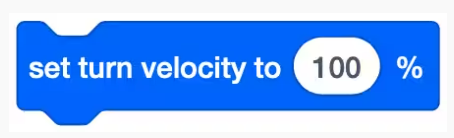
To make a VR Robot turn at different speeds, the turn velocity can be increased or decreased using the [Set turn velocity] block.

Do This:
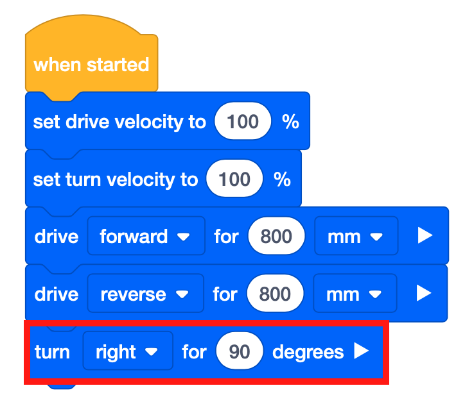
  • Drag in the [Turn for] block and attach it beneath the [Drive for] block. Set the parameters of the [Turn for] block to turn right 90 degrees.
  • Note: This project has the [Set drive velocity] and [Set turn velocity] blocks added and set to 100%. These are optional blocks.

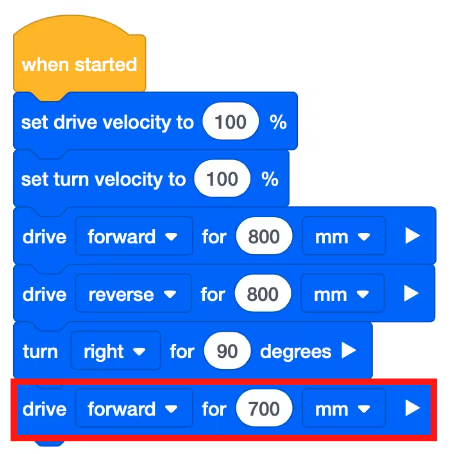
  • Drag in the [Drive for] block and attach it below the [Turn for] block. Set the parameters of the [Drive for] block to 700 millimeters (mm).

  • Select the “Start” button to test the project.
  • Watch the VR Robot drive forward and collide with the center building before reversing back to the start. The VR Robot will then turn right 90 degrees and drive forward to collide with the building at the bottom right corner of the Castle Crasher Playground.
  • The [Turn to heading] block can also be used to turn the VR Robot. This block turns the VR Robot to a given compass heading between 0 and 359.9 degrees. When a VR Robot collides with a castle, it may be knocked off course. The [Turn to heading] block ensures the VR Robot will turn to face the next castle no matter what previously happened.
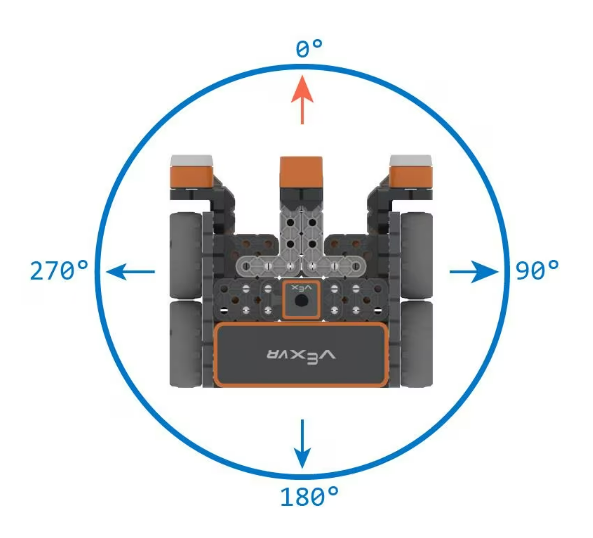
  • Note that for [Turn to heading] that 0 degrees is always the top of your screen, 180 is the bottom, and similarly 270 and 90 represent the left and right parts of your screen. It doesn't matter which way your robot is facing. (For this command).
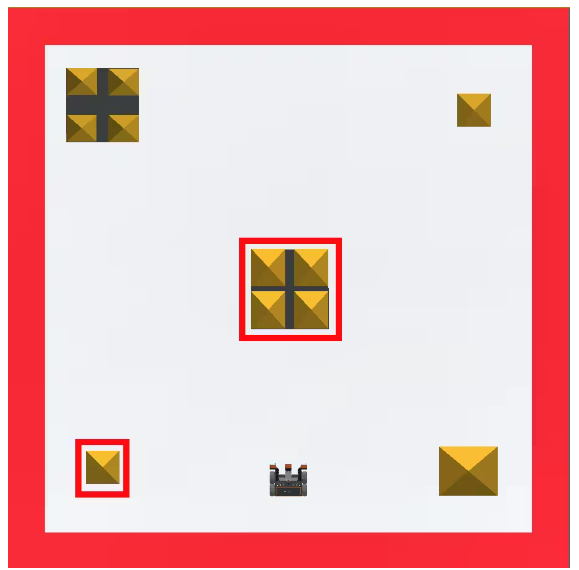
  • We are going to have the VR Robot move to knock over the center building, then turn and knock over the building in the bottom left corner on the Castle Crasher Playground.
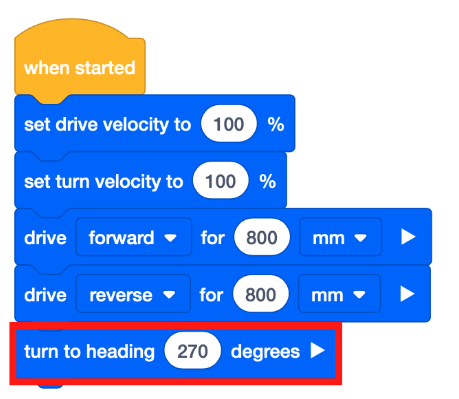
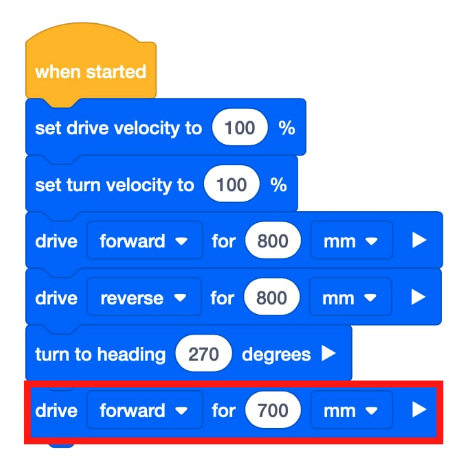
  • Remove the bottom two blocks from the project and make any other changes needed so that your code looks like this:
  • Drag in the [Turn to heading] block and attach it beneath the [Drive for] block. Set the parameters of the [Turn to heading] block to 270 degrees.
  • Drag in the [Drive for] block and attach it below the [Turn to heading] block. Set the parameters of the [Drive for] block to 700 millimeters (mm).
  • Select the “Open Playground” button to launch the Castle Crasher Playground if it is not already open.
  • Select the “Start” button to test the project.
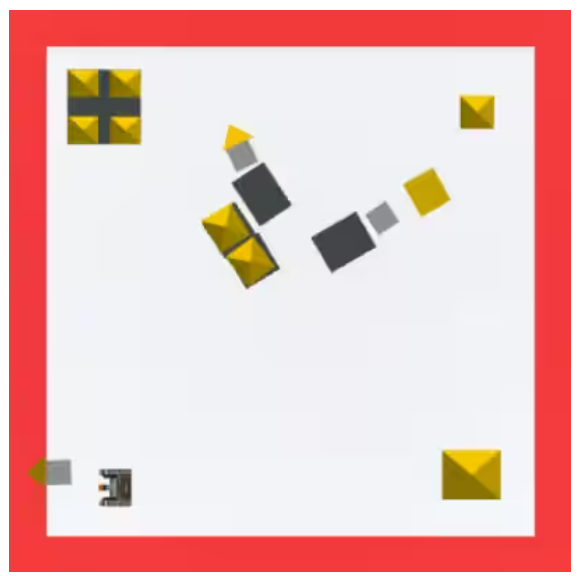
  • Watch the VR Robot move forward and collide with the center building before reversing back to the start. The VR Robot will then turn to a heading of 270 degrees and drive forward to collide with the building at the bottom left corner of the Castle Crasher Playground.
Required
1

Take a screenshot of your code and the related playground at the end of the last step. Make sure that both the code and playground window are visible, along with the name of your project and the date and time.

Required
1

Which of the following is the best description of the [Turn for] block?

Required
1

What types of values can the [Turn to heading] block NOT accept as parameters?

CASTLE CRASHER CHALLENGE

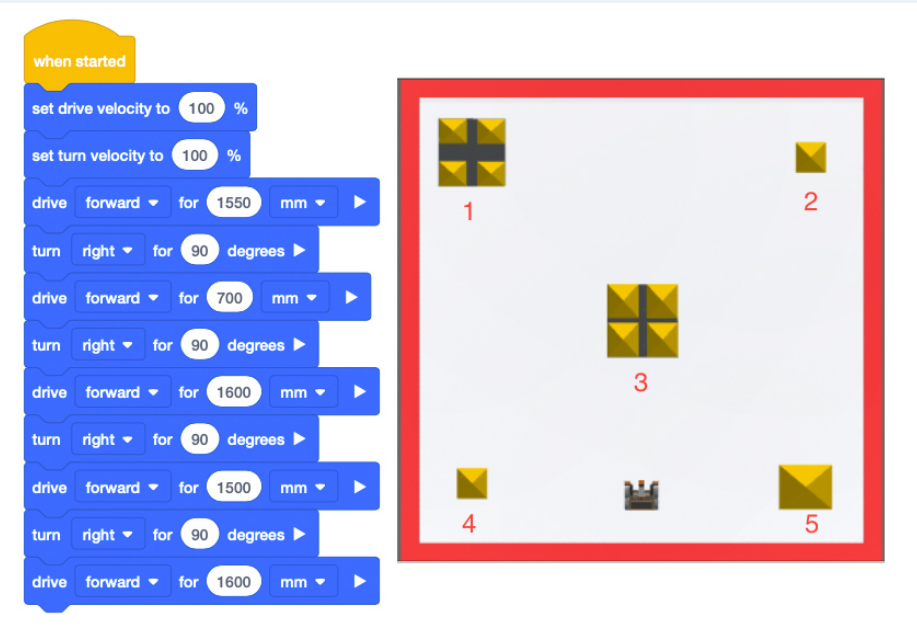
You have learned how to move the VR Robot forward and in reverse, as well as turn left and right to knock down buildings in the mini challenges. Now, you will combine all of these commands to create a project in order to knock over all of the buildings in the Castle Crasher Playground, to solve the Castle Crasher Challenge!

Objective: Use Drivetrain commands to knock over all buildings on the Castle Crasher Playground.

Here is an example of one way to solve the challenge:

Required
1

Take a screenshot of your solution to the challenge. Make sure that both the code and playground window are visible, along with the name of your project and the date and time.

Required
1

Upload the saved copy of your project from your device. It should be labeled with YourLastName_Unit2 and should automatically have the correct extension - ".vrblocks".

Required
1

Which of these best describes a programming language?

Required
1

What is the name for an action performed by the VR Robot?

Required
1

How do you change the behavior of the VR Robot?

Required
1

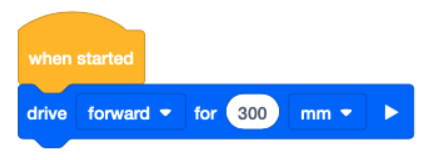
How far will the VR Robot move based off of this command?

Required
1

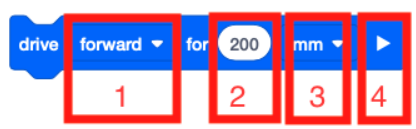
What part of the block do you select to change the direction of the [Drive for] block?

Required
1

What is the default velocity of the VR Robot?

Required
1

What is the maximum velocity setting for the VR Robot?

Required
1

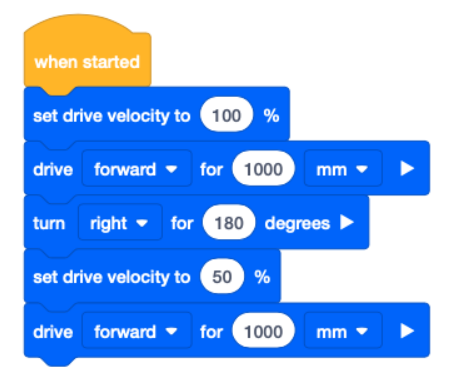
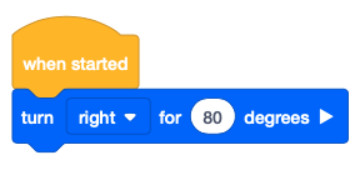
How will the VR Robot move based off of this command?

Required
1

Which block turns the VR Robot to a given compass heading?

Required
1

What order will the buildings on the Castle Crasher Playground be knocked over according to this project? Clicking on the picture will zoom in.

Required
1

Which of the following is the best description of what the VR Robot will do based on this project?

Required
1

Why is it important to correctly sequence commands in a project?