These lessons introduce us to vr.vex.com where we will learn the basics of programming virtual VEX robots. The site codeV5.vex.com is where we will code the physical VEX robots. We will go through this in class together as a whole group, primarily mirroring my actions on your own device and taking screenshots at certain steps in the procedures. We closely follow the text and directions, so if you are unable to complete it with us, you may do it on your own or see me during Advisement. This unit is very important, so it will probably take two class periods.
Required
1 point
1
Question 1
1.
Loops allow you to
DO THIS:
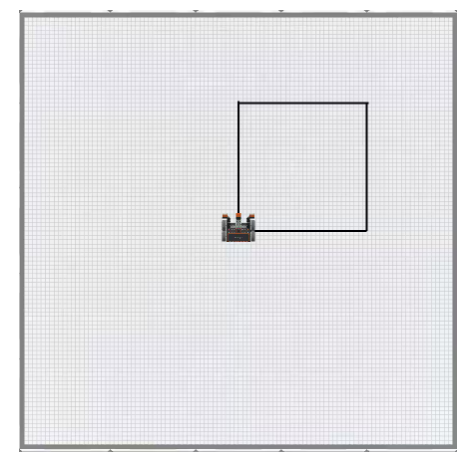
This example will have the VR Robot draw a square on the Art CanvasPlayground.
Launch VEXcode VR at vr.vex.com.
Once you launch VEXcode VR, a new project will automatically start.
To name your project, select the project name box.
Enter the new project name YourLastName_Unit3, and select “Save.”
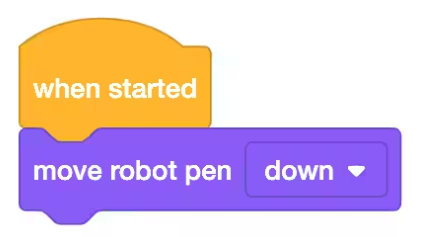
Drag in the [move robot pen] block and attach it beneath the [When started] block.
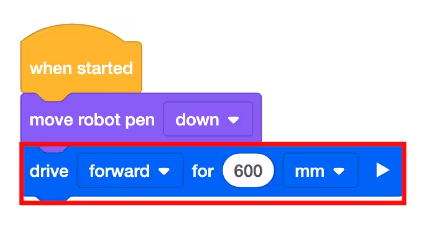
Drag in the [Drive for] block and attach it below the [move robot pen] block. Set the parameters of the [Drive for] block to 600 millimeters (mm).
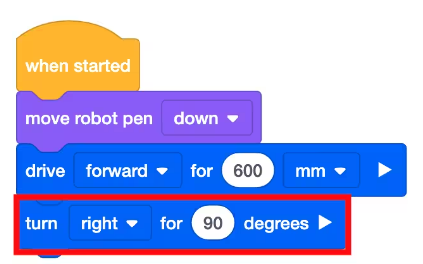
Drag in the [Turn for] block and attach it beneath the [Drive for] block. Set the parameters of the [Turn for] block to turn right 90 degrees.
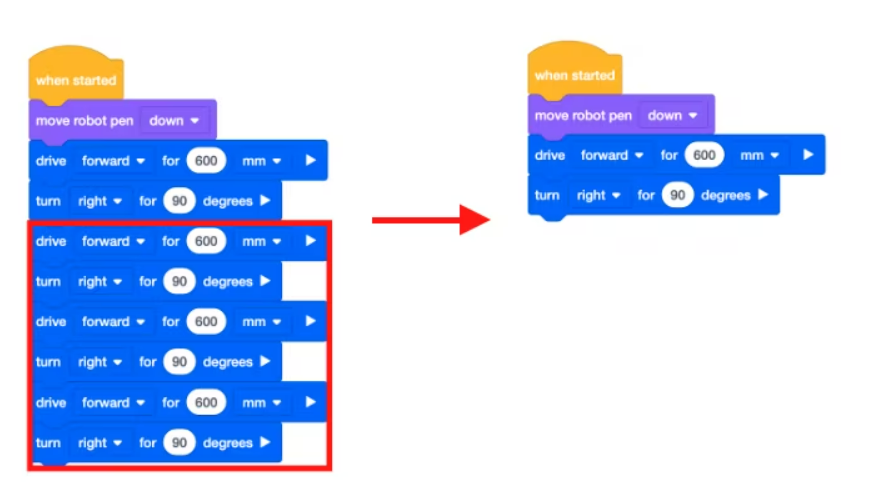
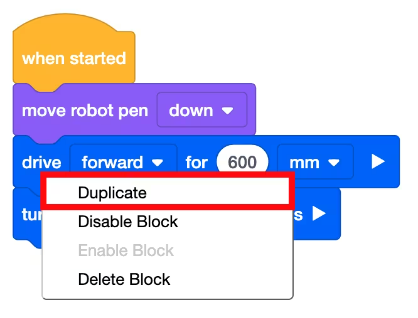
To draw the second side of the square, duplicate the [Drive for] and [Turn for] blocks. To duplicate, right click or long press on the [Drive for] block.
Additional [Drive for] and [Turn for] blocks are now added to the stack.
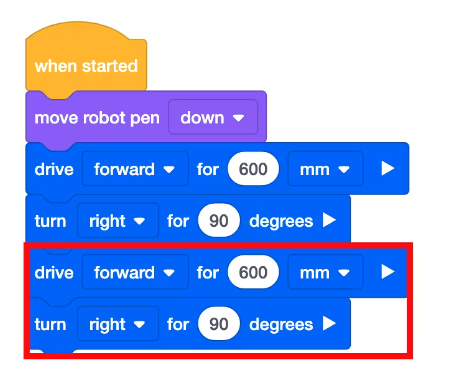
To draw the last two sides of the square, duplicate the [Drive for] and [Turn for] blocks. Right click or long press on the first [Drive for] block in the stack.
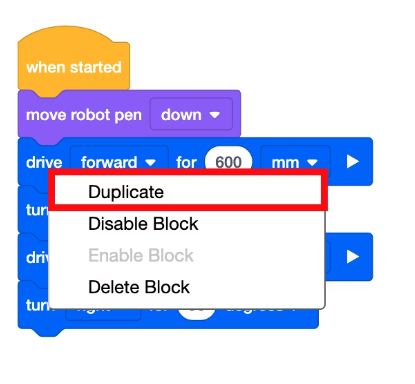
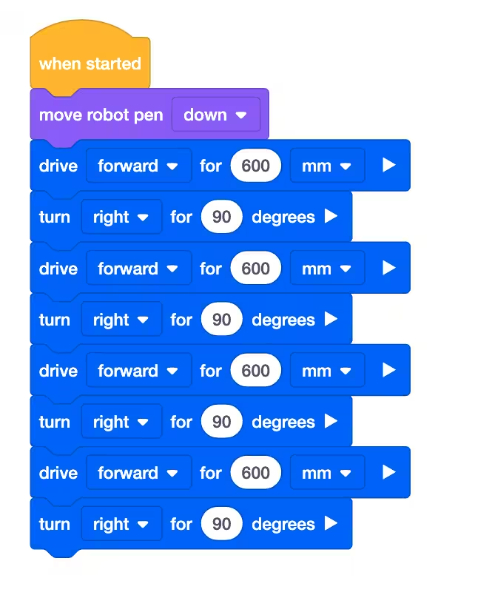
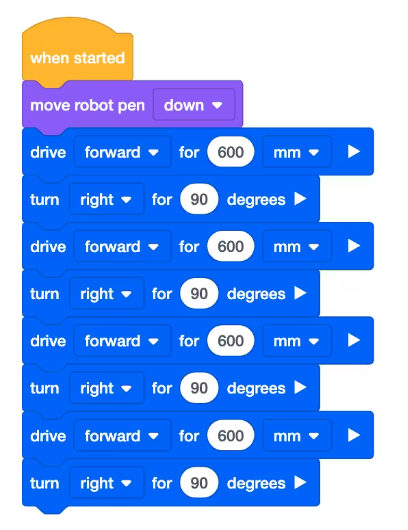
The stack of blocks will then be duplicated. Your code should look like this:
Select the “Open Playground” button to open the playground.
Open the Art CanvasPlayground.
Select the “Start” button to test the project.
The VR Robot will drive forward for 600 millimeters (mm) and then turn right for 90 degrees, while drawing with the Pen tool. The VR Robot will repeat these behaviors four times to draw all four sides of the square.
Required
1 point
1
Question 2
2.
Take a screenshot of your work showing the box your robot has drawn. Your project should be correctly named, the code and the playground window should be visible, and the date and time should be in the bottom right of the screenshot. Paste the screenshot into the "Show Your Work" box below.
For Your Information:
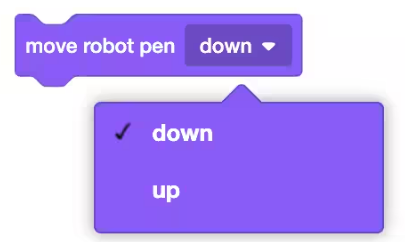
The [move robot pen] block can be used to pick up and put down the Pen tool on a VR Robot.
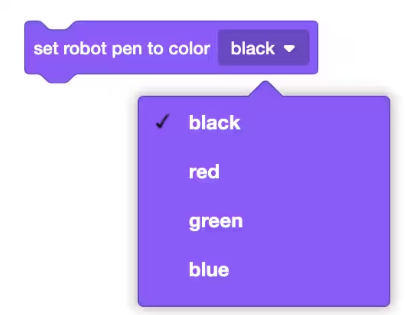
The [Set Pen color] block can be used to change the colors of the pen.
Required
1 point
1
Question 3
3.
Mini-Challenge: Draw 2 boxes
Requirements:
The square on the right should be 600 by 600 millimeters (mm),
The smaller square on the left should be 300 by 300 millimeters (mm).
The squares should not be touching each other, so the Pen tool will need to be picked up after drawing the first square and then placed back down.
Take a screenshot of your work showing the two boxes your robot has drawn. Your project should be correctly named, the code and the playground window should be visible, and the date and time should be in the bottom right of the screenshot. Paste the screenshot into the "Show Your Work" box below.
Required
1 point
1
Question 4
4.
Which two of the following blocks is used to lift up the VEX VR Pen?
Required
1 point
1
Question 5
5.
What color lines can the VEX VR Pen NOT draw?
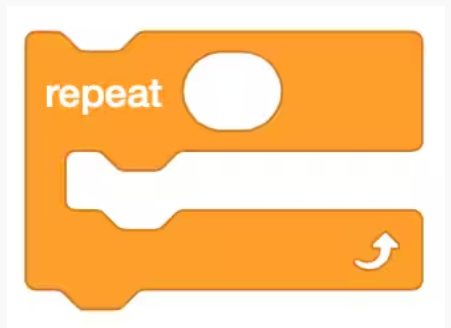
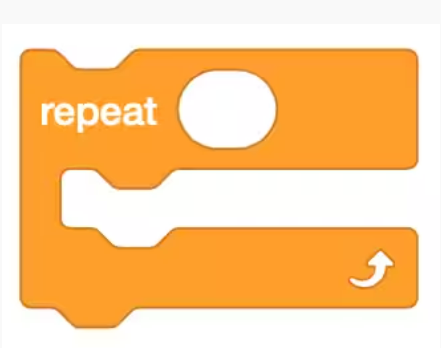
The [Repeat] block is used to repeat the blocks within it a set number of times. The [Repeat] block saves time and effort while creating projects where blocks repeat. Rather than taking the time to drag in additional blocks or duplicate existing blocks in the workspace, the [Repeat] block can be used to save space and time.
DO THIS:
Begin by modifying the previous project or creating a new project to match this base project's code. In other words, make it look like this:
The repeated blocks in this project are the [Drive for] and the [Turn for] blocks. Remove the bottom six blocks in the project so only one [Drive for] and one [Turn for] block is left beneath the [move robot pen] block.
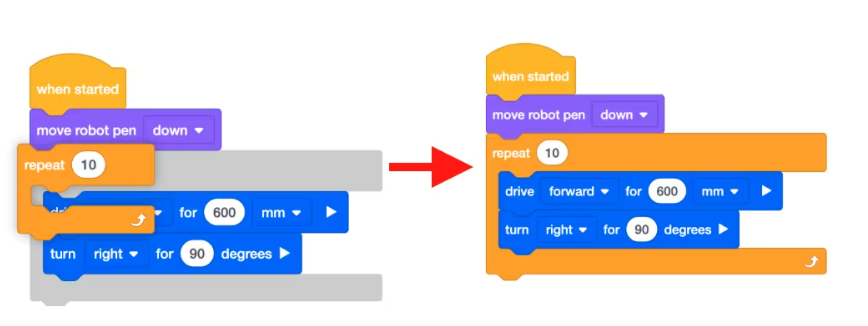
Drag in a [Repeat] block. Notice that the [Repeat] block will create a gray shadow around the blocks that will be inside when placing the block in the workspace.
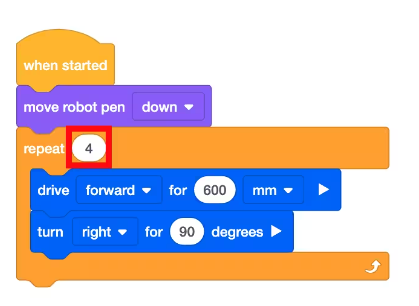
Set the parameter of the [Repeat] block to “4” so a VR Robot draws all four sides of a square.
Select the “Open Playground” button to open the Art CanvasPlayground if it is not already open.
Select the “Start” button to test the project.
Watch the VR Robot drive forward and turn right four times on the Art CanvasPlayground to draw a square with the Pen.
PROGRAM FLOW:
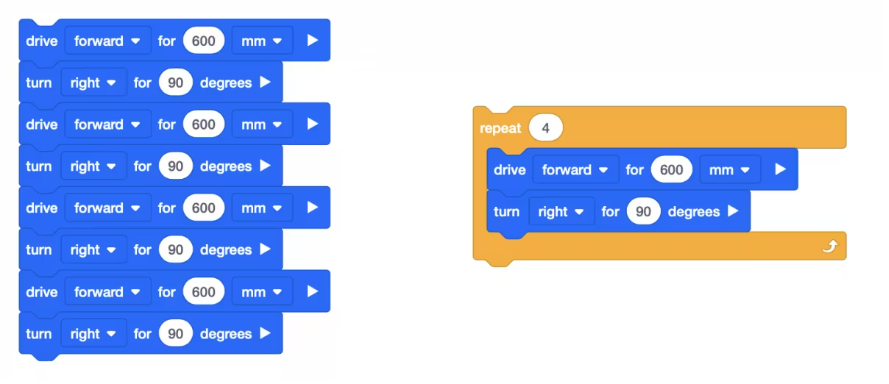
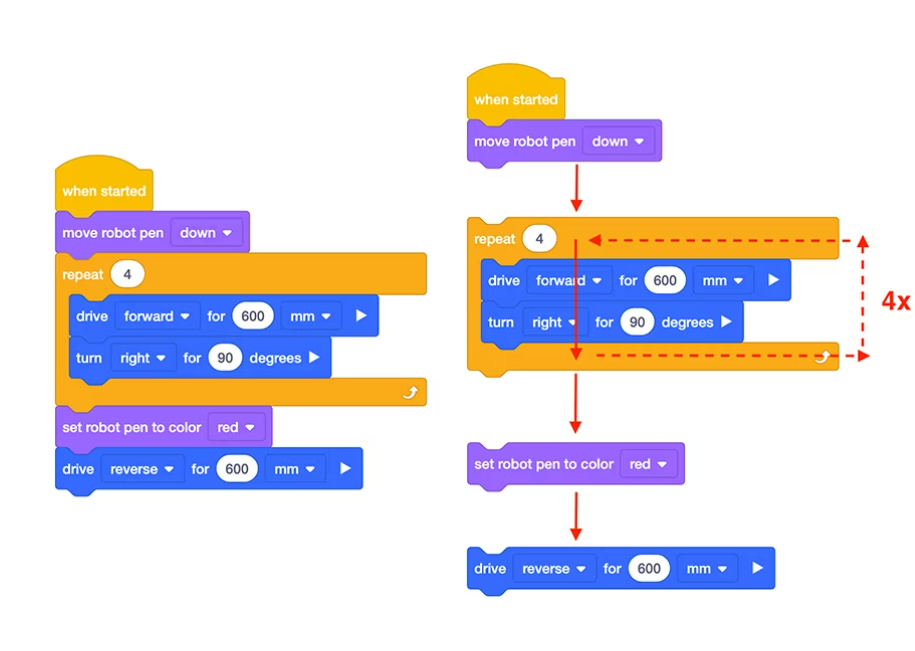
When a project uses a [Repeat] block, it still follows the same logic while executing the commands. These two stacks of blocks will execute the same behaviors. The only difference is that the stack of blocks on the right utilize a [Repeat] block.
The VR Robot will move through the commands from the [When Started] block to the bottom of the stack. The [Repeat] block indicates that the VR Robot should repeat the actions inside of the block the specified number of times before moving on to the next block in the stack after the [Repeat] block.
The specified number of times that the [Repeat] block is set to execute creates a ‘condition.’ Conditions allow the user to control the flow of a project. The condition of the [Repeat] block must be met before the project will move on to the next block in the stack. The condition created in the following example is to ‘repeat the [Drive for] and [Turn for] commands four times.’
Required
1 point
1
Question 6
6.
Mini-Challenge: Draw a blue square.
Take a screenshot of your work showing the blue box your robot has drawn. Your project should be correctly named, the code and the playground window should be visible, and the date and time should be in the bottom right of the screenshot. Paste the screenshot into the "Show Your Work" box below.
For Your Information:
The [Repeat] block can accept integers. Decimals will not work as a parameter for a [Repeat] block.
Required
1 point
1
Question 7
7.
Which of the following blocks is used to repeat the blocks inside of it for a set number of times?
Required
1 point
1
Question 8
8.
True or False: The [Repeat] block can accept decimals as parameters.
Required
1 point
1
Question 9
9.
True or False: Conditions, like the number of times repeated, are used to end a [Repeat] block.
Required
1 point
1
Question 10
10.
Which of the following describes why a [Repeat] block would be used in a project?
Required
1 point
1
Question 11
11.
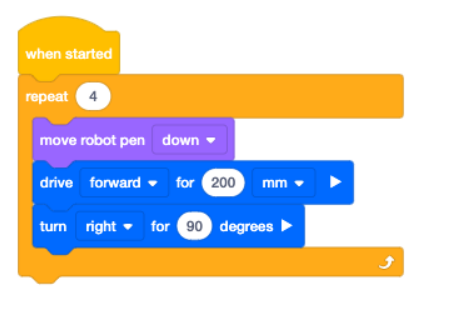
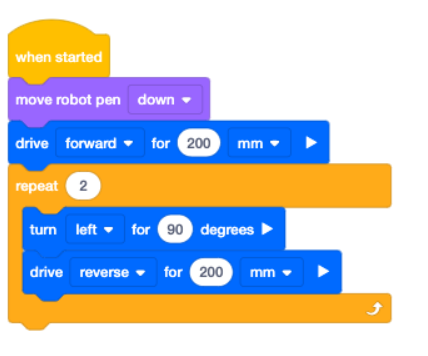
Describe how the VR Robot will move in this project.
Required
1 point
1
Question 12
12.
In this challenge, create a project where the VR Robot draws a house on the Art CanvasPlayground using [move robot pen] and [Set Pen color] blocks as well as a [Repeat] block. Use a square for the house and triangle for the roof. Both the house and the roof should be different colors. There are many ways to do this, here is one example:
Make sure to save your project "YourFirstName_Unit3".
Take a screenshot of your work showing the house your robot has drawn. Your project should be correctly named, the code and the playground window should be visible, and the date and time should be in the bottom right of the screenshot. Paste the screenshot into the "Show Your Work" box below.
Required
1 point
1
Question 13
13.
Upload the code for the house you just finished drawing. It should be titled "YourFirstName_Unit3".
Required
1 point
1
Question 14
14.
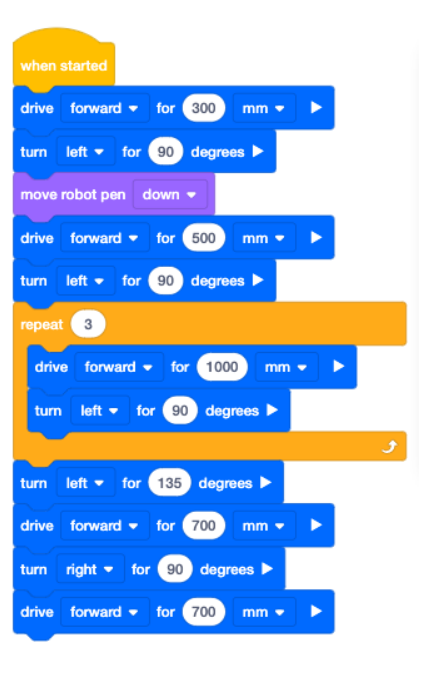
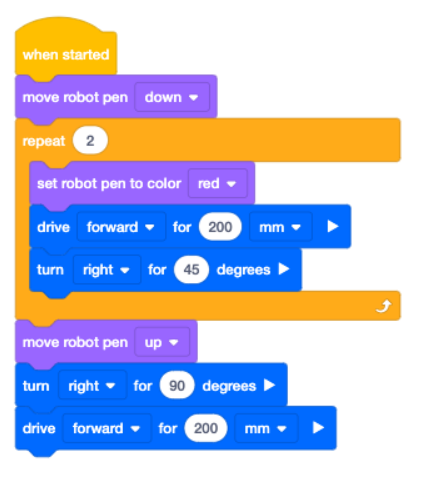
This project was used to draw a house on the Art Canvas Playground, but it does not work correctly. What is the error?
Required
1 point
1
Question 15
15.
What is the first step in coding the VR Robot to move the VR Pen down to draw a black line?
Required
1 point
1
Question 16
16.
What is the first step in coding the VR Robot to draw a red line?
Required
1 point
1
Question 17
17.
How many times will the [Repeat] block repeat the [Turn for] and [Drive for] blocks inside of it?
Required
1 point
1
Question 18
18.
What types of values can the [Repeat] block accept as parameters?
Required
1 point
1
Question 19
19.
What is the condition that will end this [Repeat] block?
Required
1 point
1
Question 20
20.
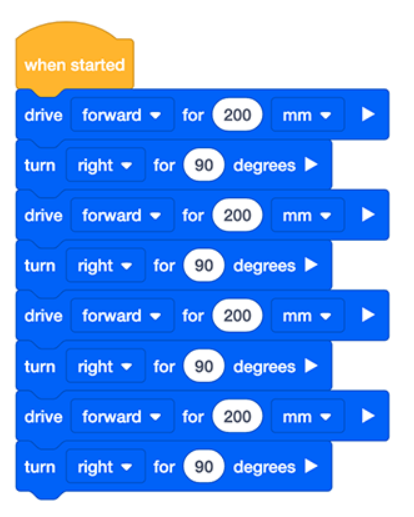
How can the following example be simplified by using a [Repeat] block?
Required
1 point
1
Question 21
21.
When will the VR Robot move the VR Pen up?
Required
1 point
1
Question 22
22.
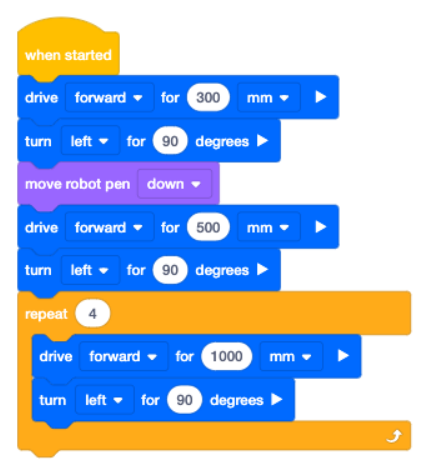
The following project was created to draw a house, but it is unfinished. Which of the following blocks should be used next to begin drawing the roof of the house?