Drag the program name to the corresponding icon.
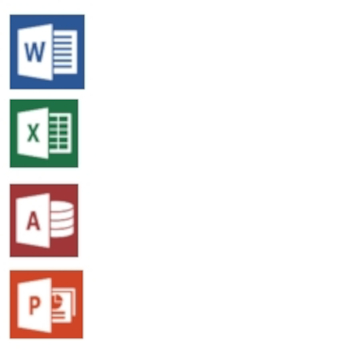
Mmuae Afoforo a Wobɛpaw:
Microsoft PowerPoint
Microsoft Access
Microsoft Excel
Microsoft Word
Read through the slides, watch the videos and answer the questions.
Remember to click Submit when done.
Proprietary and generic file types What is the difference?
Proprietary file types are specific to particular software applications or companies. These files are often created and used exclusively within a certain program, making them less accessible and compatible with other software.
Examples: .docx (Microsoft Word), .psd (Adobe Photoshop), and .pages (Apple Pages). Users may need to purchase or have a specific software license to access and modify proprietary files.
Generic file types are not tied to any particular software or company. These files are more universally recognized and can be opened and edited using a variety of programs across different platforms.
Examples: .jpeg (image), .pdf (Portable Document Format), and .mp3 (audio).
In summary, while proprietary file types are restricted to specific software, generic file types are more flexible and provide an easier way of sharing information between different devices and applications.
Drag the file extension into the correct group
.csv
.mp3
.gif
.jpg
.png
.mp4
.txt
.rar
.zip
.wav
.rtf
.svg
.bmp
.avi
Video file
Animation file
Image file
Text file
Audio
Compressed files
Drag the program name to the corresponding icon.
Upload a screenshot of your ICT/Smartskills folder with your textbook files in folders as explained in the previous video. (This question will be marked manually later)
Upload a screenshot of your files showing that the file extensions are being displayed.
(This question will be marked manually later)