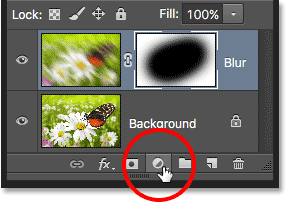
Where is the Menu Bar located? (Click on where it is located)
Where is the Menu Bar located? (Click on where it is located)
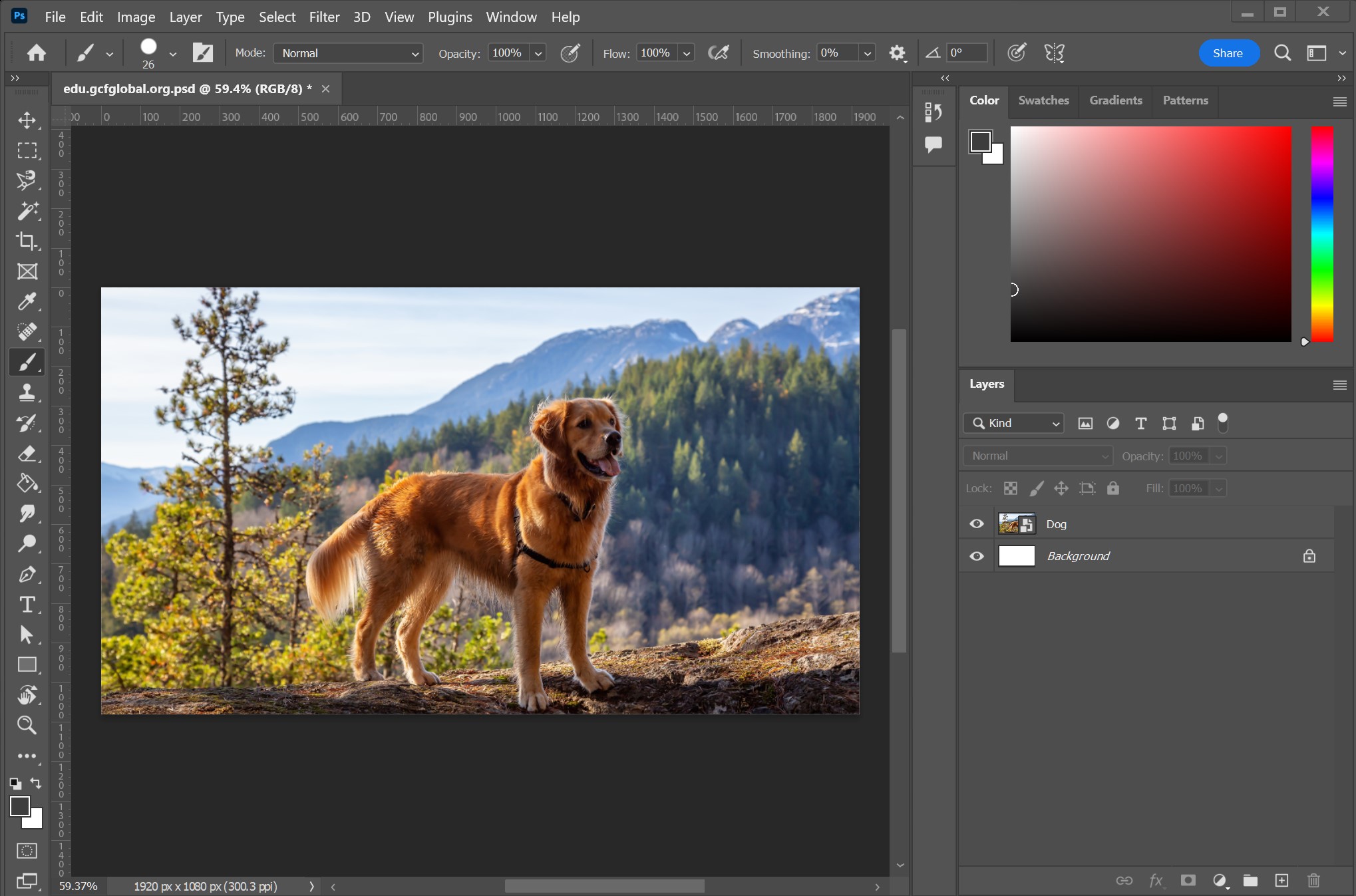
Read the following questions and answer them to the best of your ability.
Where is the Menu Bar located? (Click on where it is located)
Where is the Options Bar located? (Click on where it is located)
Where is the Documents Window/Canvas located? (Click on where it is located)
Where is the Panels located? (Click on where it is located)
Where is the Toolbar located? (Click on where it is located)
Match the following keyboard shortcuts.
| Draggable item | arrow_right_alt | Corresponding Item |
|---|---|---|
[ | arrow_right_alt | Zooming in |
Command + T | arrow_right_alt | Zooming out |
Command + C | arrow_right_alt | Undo an action |
Command + Plus Sign(-) | arrow_right_alt | Deselect |
Command + Plus Sign(+) | arrow_right_alt | Copy |
X | arrow_right_alt | Paste |
Command + Z | arrow_right_alt | Free Transform |
Command + V | arrow_right_alt | Change foreground and background colors to default colors (black and white) |
] | arrow_right_alt | Switches the foreground and background colors |
Command + D | arrow_right_alt | Brush size increase |
D | arrow_right_alt | Brush size decrease |
You should only save your work once because Photoshop automatically saves for you every 5 minutes.
Before you add a filter to a layer, you should convert it to a smart object.
You can only use ONLY one filter on an image or selection in the filter gallery.
One of the benefits of a .PSD file is that it keeps the layers editable to work on the next time you open it.
The higher the resolution of an image, the lower the quality.
Expanding a canvas in Photoshop adds extra space around an image.
Adjustment layers affect all layers above it.
The order of layers affects how they appear in the project.
The background layers is always locked when starting a new project in Photoshop.
Merging layers means you are splitting one layer into multiple layers.
You can change the blend mode and opacity of a layer by selecting their drop-down menus in the layers panel.
Match the following Photoshop elements to their description.
| Draggable item | arrow_right_alt | Corresponding Item |
|---|---|---|
Background Color | arrow_right_alt | Special layers that allow you to apply image adjustments non-destructively. |
Layer Masks | arrow_right_alt | Control how two layers interact with each other |
Layer Effects | arrow_right_alt | The transparency level of a layer (How much of the layer below is visible) |
Foreground Color | arrow_right_alt | Transparent sheets stacked on top of each other allowing you to work on different elements of an image without affecting the rest |
Clipping Masks | arrow_right_alt | Special effects that can be applied to an entire layer to create visual effects. |
Adjustment Layers | arrow_right_alt | Use the content of one layer to control the visibility of another. |
Opacity | arrow_right_alt | Isolating a specific area of an image. |
Layers | arrow_right_alt | Helps you refine and perfect selections and masks for your project. |
Filters | arrow_right_alt | Used to hide or reveal parts of a layer without permanently altering the layer. |
Select and Mask Workspace | arrow_right_alt | Effects/tools that can be applied to layers or selections to transform, enhance, or stylize an image. |
Selections | arrow_right_alt | Primary color used for painting, drawing, and filling areas |
Blend Modes | arrow_right_alt | Secondary color for erased areas and parts of gradients |
Match the following Photoshop tools to their description.
| Draggable item | arrow_right_alt | Corresponding Item |
|---|---|---|
Clone Stamp Tool | arrow_right_alt | Move (pan) around an image |
Spot Healing Brush Tool | arrow_right_alt | Crop part of an image |
Hand Tool | arrow_right_alt | Removes blemishes, imperfections, or unwanted small objects |
Content-Aware Fill | arrow_right_alt | Duplicates part of an image by painting over another area |
Crop Tool | arrow_right_alt | Automatically fills a select area with textures, colors, and details that blend in with surrounding content |
Match the Photoshop icons with its corresponding action.
| Draggable item | arrow_right_alt | Corresponding Item |
|---|---|---|
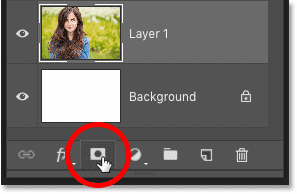
Create a layer mask | arrow_right_alt |
|
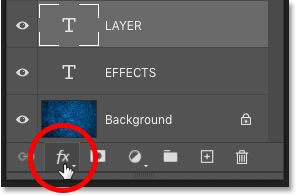
Add layer effects | arrow_right_alt |
|
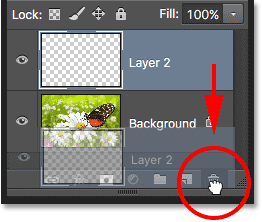
Delete a layer | arrow_right_alt |
|
Add an adjustment layer | arrow_right_alt |
|
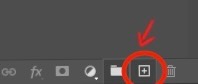
Add a new layer | arrow_right_alt |
|
Object selection tool
Polygonal lasso tool
Quick selection tool
Lasso tool
Magnetic lasso tool
Magic wand tool
Simple Backgrounds
Complex Backgrounds
Which one of these is NOT something a selection will let you do?
To convert a .PSD into .PNG, you must go to
To add an image to your project, you must go to
The layers panel are located in the
In order to make changes to a layer, the layer has to be
To resize or rotate a layer, you will need to use
To add to an existing selection, use the
If you want a perfect square or circle, hold down the
When you use the Spot Healing Brush tool, you should choose an appropriate
Before using the Clone Stamp tool, you must hold
Name 2 tools used to create shapes.
Name 3 properties you can customize with text.
Name 2 ways you can select color.
Name 2 tools that can apply color to your project.
Name 2 types of adjustment layers you could select.
Name 2 examples of layer effects you can use.
Name 3 types of filters you can use on a project.
Name 3 things you can use for non-destructive editing?
Why should you name/rename all of your layers in a project?
What do you need to do FIRST when using the Content-Aware Fill?
In the Content-Aware Fill Workspace, what does the green overlay represent? How do you add or subtract from the green overlay?
What is the correct way to name this project?
First Name: Taylor
Last Name: Swift
Project Number: 4
Image Number: 2
What does non-destructive editing mean?
How do you move layers?
How do you use the quick selection tool?
Name one advantage of using a layer mask.
How do you edit a layer mask? What does a black brush do? What does a white brush do?
What is the difference between the polygonal lasso tool and magnetic lasso tool?
Name the 3 things you should do when you open Photoshop.
Where should you create a new project folder?
Name 2 things you should do to keep your images organized on your Mac.